Networking
Switching, Routing and Gateways
Switching
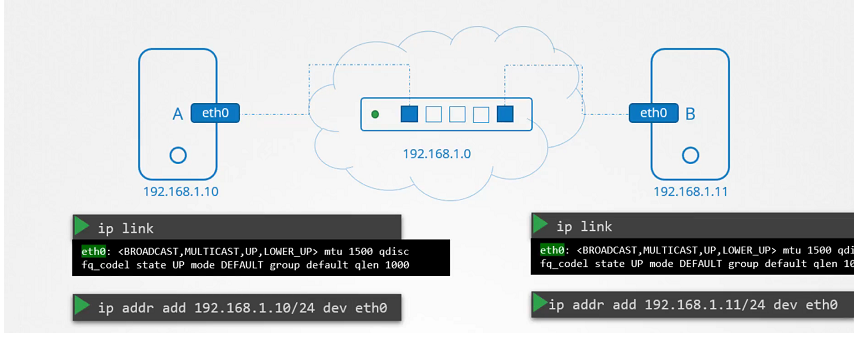
To see the interface on the host system
$ ip link
To see the IP Address interfaces.
$ ip addr
Routing
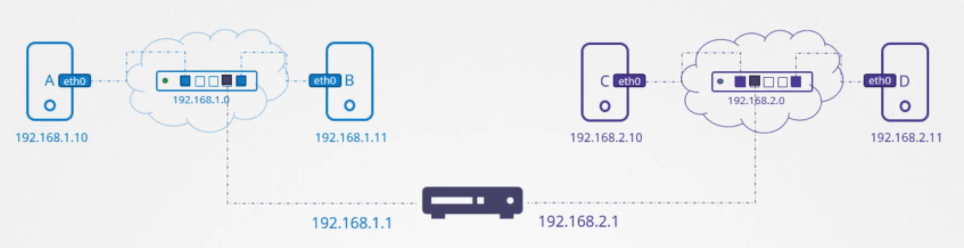
To see the existing routing table on the host system.
$ route
$ ip route show
or
$ ip route list
- To add entries into the routing table.
$ ip route add 192.168.1.0/24 via 192.168.2.1
Gateways
To add a default route.
$ ip route add default via 192.168.2.1
To check the IP forwarding is enabled on the host.
$ cat /proc/sys/net/ipv4/ip_forward
0

$ echo 1 > /proc/sys/net/ipv4/ip_forward
Enable packet forwarding for IPv4.
$ cat /etc/sysctl.conf

# Uncomment the line
net.ipv4.ip_forward=1
To view the sysctl variables.
$ sysctl -a
To reload the sysctl configuration.
$ sysctl --system
Name resolution
With help of the ping command. Checking the reachability of the IP Addr on the Network.
$ ping 172.17.0.64
PING 172.17.0.64 (172.17.0.64) 56(84) bytes of data.
64 bytes from 172.17.0.64: icmp_seq=1 ttl=64 time=0.384 ms
64 bytes from 172.17.0.64: icmp_seq=2 ttl=64 time=0.415 ms
Checking with their hostname
$ ping web
ping: unknown host web
Adding entry in the /etc/hosts file to resolve by their hostname.
$ cat >> /etc/hosts
172.17.0.64  web


# Ctrl + c to exit
It will look into the /etc/hosts file.
$ ping web
PING web (172.17.0.64) 56(84) bytes of data.
64 bytes from web (172.17.0.64): icmp_seq=1 ttl=64 time=0.491 ms
64 bytes from web (172.17.0.64): icmp_seq=2 ttl=64 time=0.636 ms

$ ssh web

$ curl http://web
DNS
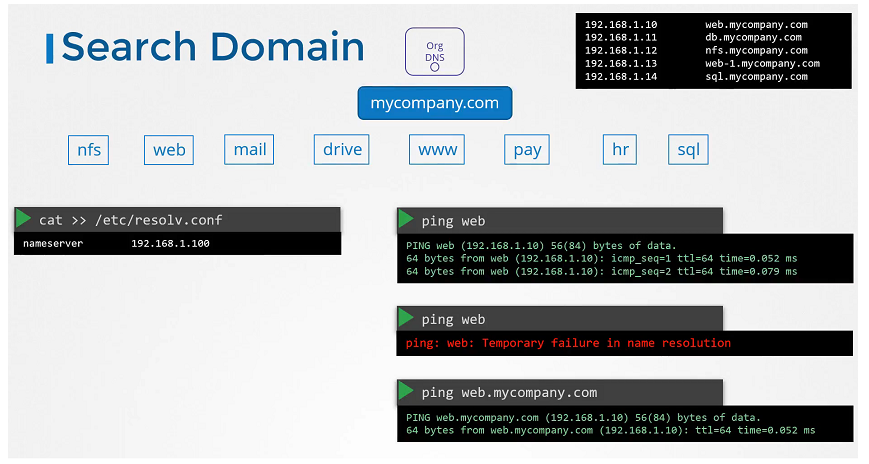
Every host has a DNS resolution configuration file at /etc/resolv.conf.
$ cat /etc/resolv.conf
nameserver 127.0.0.53
options edns0
To change the order of dns resolution, we need to do changes into the /etc/nsswitch.conf file.
$ cat /etc/nsswitch.conf

hosts:          files dns
networks:       files
If it fails in some conditions.
$ ping wwww.github.com
ping: www.github.com: Temporary failure in name resolution
Adding well known public nameserver in the /etc/resolv.conf file.
$ cat /etc/resolv.conf
nameserver   127.0.0.53
nameserver   8.8.8.8
options edns0
$ ping www.github.com
PING github.com (140.82.121.3) 56(84) bytes of data.
64 bytes from 140.82.121.3 (140.82.121.3): icmp_seq=1 ttl=57 time=7.07 ms
64 bytes from 140.82.121.3 (140.82.121.3): icmp_seq=2 ttl=57 time=5.42 ms
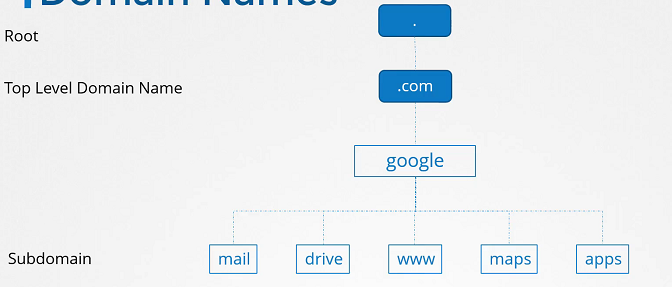
Domain name

Networking tools
Useful networking tools to test dns name resolution.
nslookup
$ nslookup www.google.com
Server:         127.0.0.53
Address:        127.0.0.53#53

Non-authoritative answer:
Name:   www.google.com
Address: 172.217.18.4
Name:   www.google.com
dig
$ dig www.google.com

; <<>> DiG 9.11.3-1 ...
;; Got answer:
;; ->>HEADER<<- opcode: QUERY, status: NOERROR, id: 8738
;; flags: qr rd ra; QUERY: 1, ANSWER: 1, AUTHORITY: 0, ADDITIONAL: 1

;; OPT PSEUDOSECTION:
; EDNS: version: 0, flags:; udp: 65494
;; QUESTION SECTION:
;www.google.com.                        IN      A

;; ANSWER SECTION:
www.google.com.         63      IN      A       216.58.206.4

;; Query time: 6 msec
;; SERVER: 127.0.0.53#53(127.0.0.53)
$ wget https://github.com/coredns/coredns/releases/download/v1.7.0/coredns_1.7.0_linux_amd64.tgz
coredns_1.7.0_linux_amd64.tgz
$ tar -xzvf coredns_1.7.0_linux_amd64.tgz
coredns
Core DNS
$ wget https://github.com/coredns/coredns/releases/download/v1.7.0/coredns_1.7.0_linux_amd64.tgz
coredns_1.7.0_linux_amd64.tgz

$ tar -xzvf coredns_1.7.0_linux_amd64.tgz
Run the executable file to start a DNS server. By default, it’s listen on port 53, which is the default port for a DNS server.
$ ./coredns
Configuring the hosts file
- Adding entries into the
/etc/hostsfile. - CoreDNS will pick the ips and names from the
/etc/hostsfile on the server.
$ cat > /etc/hosts
192.168.1.10    web
192.168.1.11    db
192.168.1.15    web-1
192.168.1.16    db-1
192.168.1.21    web-2
192.168.1.22    db-2
Adding into the Corefile
$ cat > Corefile
. {
    hosts   /etc/hosts
}
Run the executable file
$ ./coredns
Networking namespaces
Process Namespace
On the container
$ ps aux
On the host
$ ps aux
Network Namespace
$ route
$ arp
Create Network Namespace
$ ip netns add red

$ ip netns add blue
- List the network namespace
$ ip netns
Exec in Network Namespace
- List the interfaces on the host
$ ip link
- Exec inside the network namespace
$ ip netns exec red ip link
1: lo: <LOOPBACK> mtu 65536 qdisc noop state DOWN mode DEFAULT group default qlen 1000
    link/loopback 00:00:00:00:00:00 brd 00:00:00:00:00:00

$ ip netns exec blue ip link
1: lo: <LOOPBACK> mtu 65536 qdisc noop state DOWN mode DEFAULT group default qlen 1000
    link/loopback 00:00:00:00:00:00 brd 00:00:00:00:00:00
- You can try with other options as well. Both works the same.
$ ip -n red link
1: lo: <LOOPBACK> mtu 65536 qdisc noop state DOWN mode DEFAULT group default qlen 1000
    link/loopback 00:00:00:00:00:00 brd 00:00:00:00:00:00
ARP and Routing Table
On the host
$ arp
Address                  HWtype  HWaddress           Flags Mask            Iface
172.17.0.21              ether   02:42:ac:11:00:15   C                     ens3
172.17.0.55              ether   02:42:ac:11:00:37   C                     ens3
On the Network Namespace
$ ip netns exec red arp
Address                  HWtype  HWaddress           Flags Mask            Iface

$ ip netns exec blue arp
Address                  HWtype  HWaddress           Flags Mask            Iface
On the host
$ route
On the Network Namespace
$ ip netns exec red route
Kernel IP routing table
Destination     Gateway         Genmask         Flags Metric Ref    Use Iface

$ ip netns exec blue route
Kernel IP routing table
Destination     Gateway         Genmask         Flags Metric Ref    Use Iface
Virtual Cable
- To create a virtual cable
$ ip link add veth-red type veth peer name veth-blue
- To attach with the network namespaces
$ ip link set veth-red netns red

$ ip link set veth-blue netns blue
- To add an IP address
$ ip -n red addr add 192.168.15.1/24 dev veth-red

$ ip -n blue addr add 192.168.15.2/24 dev veth-blue
- To turn it up
nsinterfaces
$ ip -n red link set veth-red up

$ ip -n blue link set veth-blue up
- Check the reachability
$ ip netns exec red ping 192.168.15.2
PING 192.168.15.2 (192.168.15.2) 56(84) bytes of data.
64 bytes from 192.168.15.2: icmp_seq=1 ttl=64 time=0.035 ms
64 bytes from 192.168.15.2: icmp_seq=2 ttl=64 time=0.046 ms

$ ip netns exec red arp
Address                  HWtype  HWaddress           Flags Mask            Iface
192.168.15.2             ether   da:a7:29:c4:5a:45   C                     veth-red

$ ip netns exec blue arp
Address                  HWtype  HWaddress           Flags Mask            Iface
192.168.15.1             ether   92:d1:52:38:c8:bc   C                     veth-blue
- Delete the link.
$ ip -n red link del veth-red
On the host
# Not available
$ arp
Address                  HWtype  HWaddress           Flags Mask            Iface
172.16.0.72              ether   06:fe:61:1a:75:47   C                     ens3
172.17.0.68              ether   02:42:ac:11:00:44   C                     ens3
172.17.0.74              ether   02:42:ac:11:00:4a   C                     ens3
172.17.0.75              ether   02:42:ac:11:00:4b   C                     ens3
Linux Bridge
- Create a network namespace
$ ip netns add red

$ ip netns add blue
- To create a internal virtual bridge network, we add a new interface to the host
$ ip link add v-net-0 type bridge
- Display in the host
$ ip link
8: v-net-0: <BROADCAST,MULTICAST> mtu 1500 qdisc noop state DOWN mode DEFAULT group default qlen 1000
    link/ether fa:fd:d4:9b:33:66 brd ff:ff:ff:ff:ff:ff
- Currently it’s down, so turn it up
$ ip link set dev v-net-0 up
- To connect network namespace to the bridge. Creating a virtual cabel
$ ip link add veth-red type veth peer name veth-red-br

$ ip link add veth-blue type veth peer name veth-blue-br
- Set with the network namespaces
$ ip link set veth-red netns red

$ ip link set veth-blue netns blue

$ ip link set veth-red-br master v-net-0

$ ip link set veth-blue-br master v-net-0
- To add an IP address
$ ip -n red addr add 192.168.15.1/24 dev veth-red

$ ip -n blue addr add 192.168.15.2/24 dev veth-blue
- To turn it up
nsinterfaces
$ ip -n red link set veth-red up

$ ip -n blue link set veth-blue up
- To add an IP address
$ ip addr add 192.168.15.5/24 dev v-net-0
- Turn it up added interfaces on the host
$ ip link set dev veth-red-br up
$ ip link set dev veth-blue-br up
On the host
$ ping 192.168.15.1
On the ns
$ ip netns exec blue ping 192.168.1.1
Connect: Network is unreachable

$ ip netns exec blue route

$ ip netns exec blue ip route add 192.168.1.0/24 via 192.168.15.5

# Check the IP Address of the host
$ ip a

$ ip netns exec blue ping 192.168.1.1
PING 192.168.1.1 (192.168.1.1) 56(84) bytes of data.

$ iptables -t nat -A POSTROUTING -s 192.168.15.0/24 -j MASQUERADE

$ ip netns exec blue ping 192.168.1.1

$ ip netns exec blue ping 8.8.8.8

$ ip netns exec blue route

$ ip netns exec blue ip route add default via 192.168.15.5

$ ip netns exec blue ping 8.8.8.8
- Adding port forwarding rule to the iptables
$ iptables -t nat -A PREROUTING --dport 80 --to-destination 192.168.15.2:80 -j DNAT
$ iptables -nvL -t nat
Docker networking
None Network
- Running docker container with
nonenetwork
$ docker run --network none nginx
Host Network
- Running docker container with
hostnetwork
$ docker run --network host nginx
Bridge Network
- Running docker container with
bridgenetwork
$ docker run --network bridge nginx
List the Docker Network
$ docker network ls
NETWORK ID          NAME                DRIVER              SCOPE
4974cba36c8e        bridge              bridge              local
0e7b30a6c996        host                host                local
a4b19b17d2c5        none                null                local
To view the Network Device on the Host
$ ip link
or
$ ip link show docker0
3: docker0: <NO-CARRIER,BROADCAST,MULTICAST,UP> mtu 1500 qdisc noqueue state DOWN mode DEFAULT group default
    link/ether 02:42:cf:c3:df:f5 brd ff:ff:ff:ff:ff:ff
- With the help of
ip link addcommand to type setbridgetodocker0
$ ip link add docker0 type bridge
To view the IP Addr of the interface docker0
$ ip addr
or
$ ip addr show docker0
3: docker0: <NO-CARRIER,BROADCAST,MULTICAST,UP> mtu 1500 qdisc noqueue state DOWN group default
    link/ether 02:42:cf:c3:df:f5 brd ff:ff:ff:ff:ff:ff
    inet 172.18.0.1/24 brd 172.18.0.255 scope global docker0
       valid_lft forever preferred_lft forever
Run the command to create a Docker Container
$ docker run nginx
To list the Network Namespace
$ ip netns
1c452d473e2a (id: 2)
db732004aa9b (id: 1)
04acb487a641 (id: 0)
default

# Inspect the Docker Container

$ docker inspect <container-id>

# To view the interface attached with the local bridge docker0

$ ip link
3: docker0: <BROADCAST,MULTICAST,UP,LOWER_UP> mtu 1500 qdisc noqueue state UP mode DEFAULT group default
    link/ether 02:42:c8:3a:ea:67 brd ff:ff:ff:ff:ff:ff
5: vetha3e33331@if3: <BROADCAST,MULTICAST,UP,LOWER_UP> mtu 1500 qdisc noqueue master docker0 state UP mode DEFAULT group default
    link/ether e2:b2:ad:c9:8b:98 brd ff:ff:ff:ff:ff:ff link-netnsid 0

# with -n options with the network namespace to view the other end of the interface

$ ip -n 04acb487a641 link
1: lo: <LOOPBACK,UP,LOWER_UP> mtu 65536 qdisc noqueue state UNKNOWN mode DEFAULT group default qlen 1000
    link/loopback 00:00:00:00:00:00 brd 00:00:00:00:00:00
3: eth0@if5: <BROADCAST,MULTICAST,UP,LOWER_UP> mtu 1500 qdisc noqueue state UP mode DEFAULT group default
    link/ether c6:f3:ca:12:5e:74 brd ff:ff:ff:ff:ff:ff link-netnsid 0

# To view the IP Addr assigned to this interface

$ ip -n 04acb487a641 addr
3: eth0@if5: <BROADCAST,MULTICAST,UP,LOWER_UP> mtu 1500 qdisc noqueue state UP group default
    link/ether c6:f3:ca:12:5e:74 brd ff:ff:ff:ff:ff:ff link-netnsid 0
    inet 10.244.0.2/24 scope global eth0
       valid_lft forever preferred_lft forever
Port Mapping
- Creating a docker container.
$ docker run -itd --name nginx nginx
d74ca9d57c1d8983db2c590df2fdd109e07e1972d6b361a6ecad8a942af5bf7e
- Inspect the docker container to view the IPAddress.
$ docker inspect nginx | grep -w IPAddress
            "IPAddress": "172.18.0.6",
                    "IPAddress": "172.18.0.6",
- Accessing web page with the
curlcommand.
$ curl --head  http://172.18.0.6:80
HTTP/1.1 200 OK
Server: nginx/1.19.2
- Port Mapping to docker container
$ docker run -itd --name nginx -p 8080:80 nginx
e7387bbb2e2b6cc1d2096a080445a6b83f2faeb30be74c41741fe7891402f6b6
- Inspecting docker container to view the assgined ports.
$ docker inspect nginx | grep -w -A5 Ports

  "Ports": {
                "80/tcp": [
                    {
                        "HostIp": "0.0.0.0",
                        "HostPort": "8080"
                    }
- To view the IP Addr of the host system
$ ip a

# Accessing nginx page with curl command

$ curl --head http://192.168.10.11:8080
HTTP/1.1 200 OK
Server: nginx/1.19.2
- Configuring iptables nat rules
$ iptables \
         -t nat \
         -A PREROUTING \
         -j DNAT \
         --dport 8080 \
         --to-destination 80
$ iptables \
      -t nat \
      -A DOCKER \
      -j DNAT \
      --dport 8080 \
      --to-destination 172.18.0.6:80
List the Iptables rules
$ iptables -nvL -t nat
Cluster Networking
-
The “pod-to-pod network” or “pod network”:
-
provides communication between pods and nodes
-
is generally implemented with CNI plugins
-
-
The “pod-to-service network”:
-
provides internal communication and load balancing
-
is generally implemented with kube-proxy (or maybe kube-router)
-
-
Network policies:
-
provide firewalling and isolation
-
can be bundled with the “pod network” or provided by another component
-
In this section, we will take a look at Pre-requisite of the Cluster Networking
- Set the unique hostname.
- Get the IP addr of the system (master and worker node).
- Check the Ports.
IP and Hostname
- To view the hostname
$ hostname
- To view the IP addr of the system
$ ip a
Set the hostname
$ hostnamectl set-hostname <host-name>

$ exec bash
View the Listening Ports of the system
$ netstat -nltp
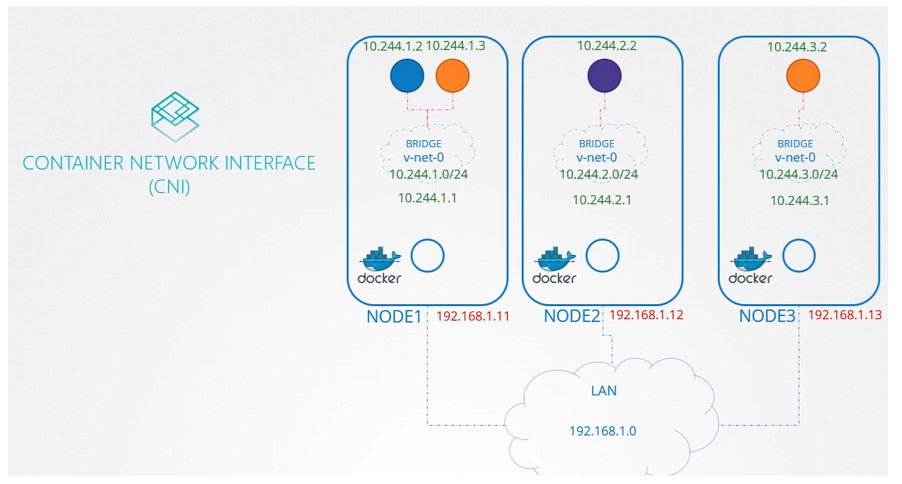
Pod Networking
In this section, we will take a look at Pod Networking
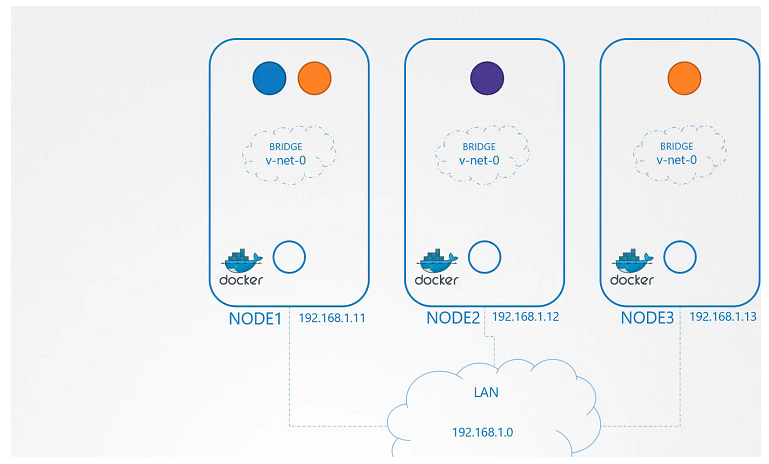
- To add bridge network on each node
node01
$ ip link add v-net-0 type bridge
node02
$ ip link add v-net-0 type bridge
node03
$ ip link add v-net-0 type bridge
- Currently it’s down, turn it up.
node01
$ ip link set dev v-net-0 up
node02
$ ip link set dev v-net-0 up
node03
$ ip link set dev v-net-0 up
- Set the IP Addr for the bridge interface
node01
$ ip addr add 10.244.1.1/24 dev v-net-0
node02
$ ip addr add 10.244.2.1/24 dev v-net-0
node03
$ ip addr add 10.244.3.1/24 dev v-net-0
- heck the reachability
$ ping 10.244.2.2
Connect: Network is unreachable
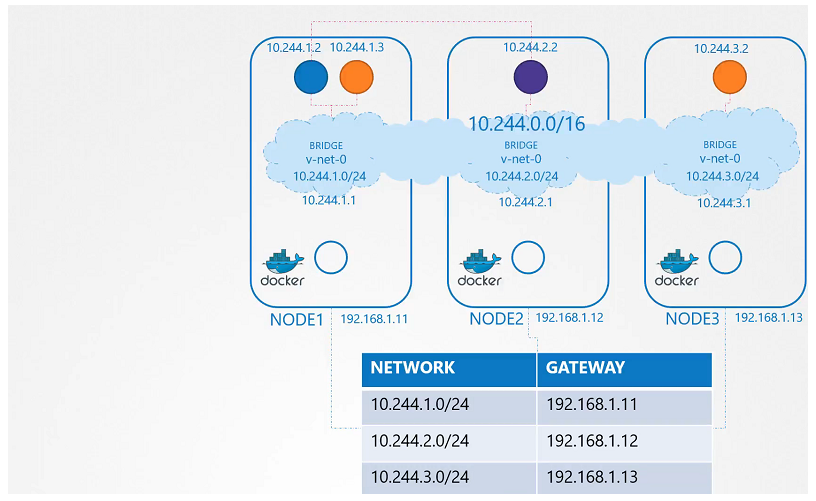
- Add route in the routing table
$ ip route add 10.244.2.2 via 192.168.1.12
node01
$ ip route add 10.244.2.2 via 192.168.1.12

$ ip route add 10.244.3.2 via 192.168.1.13
node02
$ ip route add 10.244.1.2 via 192.168.1.11

$ ip route add 10.244.3.2 via 192.168.1.13
node03
$ ip route add 10.244.1.2 via 192.168.1.11

$ ip route add 10.244.2.2 via 192.168.1.12
- Add a single large network
CNI
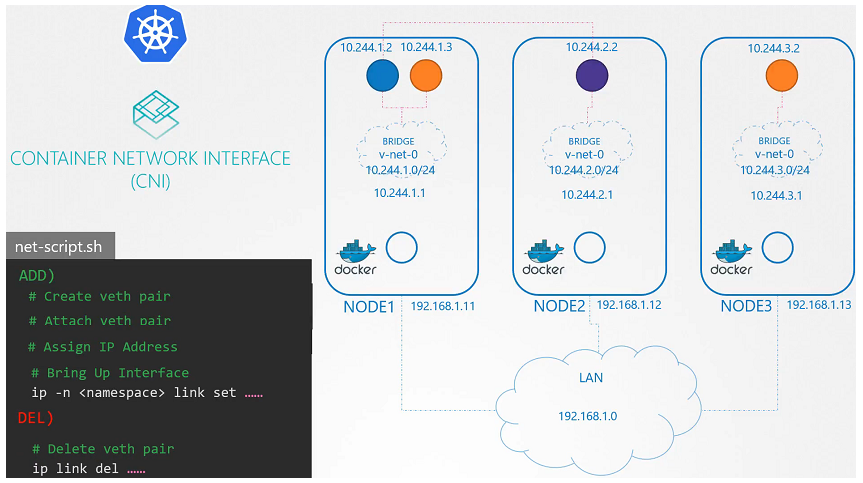
CNI in Kubernetes
In this section, we will take a look at Pre-requisite Container Network Interface(CNI)
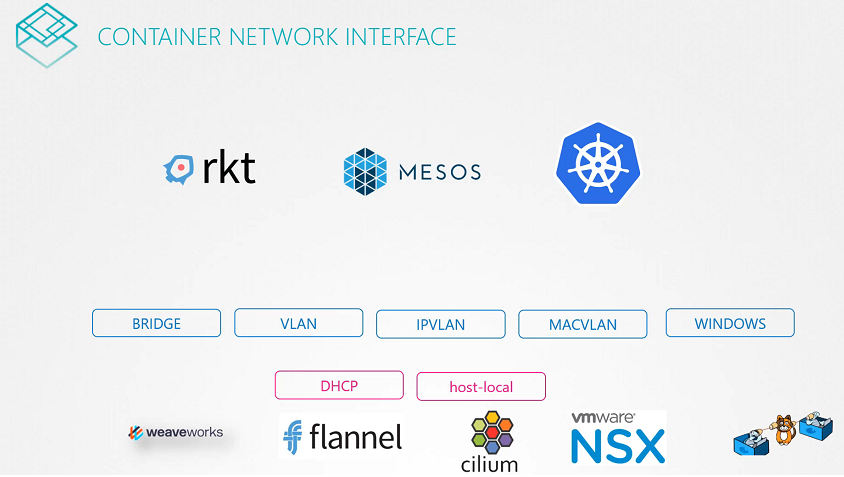
$ ls /opt/cni/bin/
bridge  dhcp  flannel  host-device  host-local  ipvlan  loopback  macvlan  portmap  ptp  sample  tuning  vlan
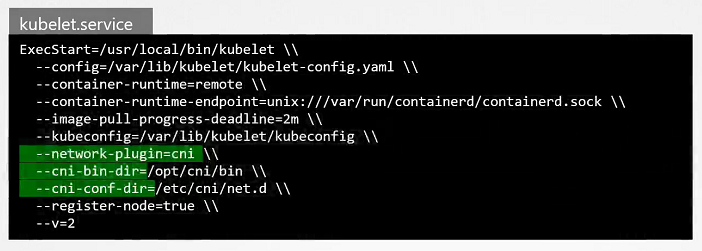
- Check the status of the Kubelet Service
$ systemctl status kubelet.service
View Kubelet Options
$ ps -aux | grep kubelet
Check the Supportable Plugins
- To check the all supportable plugins available in the
/opt/cni/bindirectory.
$ ls /opt/cni/bin
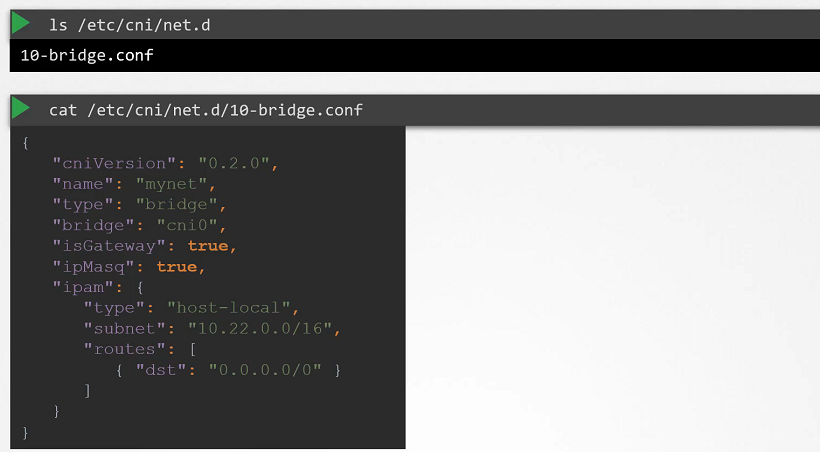
Check the CNI Plugins
- To check the cni plugins which kubelet needs to be used.
ls /etc/cni/net.d
CNI Weave
In this section, we will take a look at “CNI Weave in the Kubernetes Cluster”
Deploy Weave
- Installing weave net onto the Kubernetes cluster with a single command.
$ kubectl apply -f "https://cloud.weave.works/k8s/net?k8s-version=$(kubectl version | base64 | tr -d '\n')"
serviceaccount/weave-net created
clusterrole.rbac.authorization.k8s.io/weave-net created
clusterrolebinding.rbac.authorization.k8s.io/weave-net created
role.rbac.authorization.k8s.io/weave-net created
rolebinding.rbac.authorization.k8s.io/weave-net created
daemonset.apps/weave-net created
Weave Peers
$ kubectl get pods -n kube-system
NAME                                      READY   STATUS             RESTARTS   AGE
coredns-66bff467f8-894jf                  1/1     Running            0          52m
coredns-66bff467f8-nck5f                  1/1     Running            0          52m
etcd-controlplane                         1/1     Running            0          52m
kube-apiserver-controlplane               1/1     Running            0          52m
kube-controller-manager-controlplane      1/1     Running            0          52m
kube-keepalived-vip-mbr7d                 1/1     Running            0          52m
kube-proxy-p2mld                          1/1     Running            0          52m
kube-proxy-vjcwp                          1/1     Running            0          52m
kube-scheduler-controlplane               1/1     Running            0          52m
weave-net-jgr8x                           2/2     Running            0          45m
weave-net-tb9tz                           2/2     Running            0          45m
View the logs of Weave Pod’s
$ kubectl logs weave-net-tb9tz weave -n kube-system
View the default route in the Pod
$ kubectl run test --image=busybox --command -- sleep 4500
pod/test created

$ kubectl exec test -- ip route
default via 10.244.1.1 dev eth0
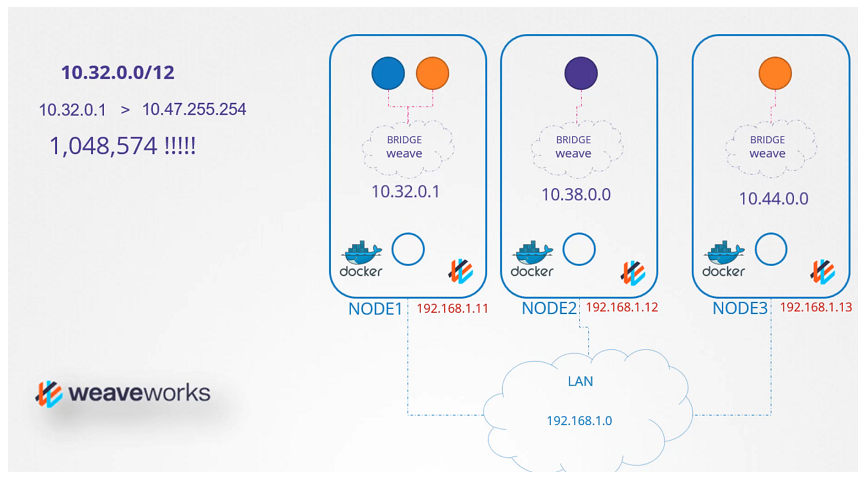
IPAM Weave (IP Adress management)
- How weaveworks Manages IP addresses in the Kubernetes Cluster
Service networking
Service Types
- ClusterIP
clusterIP.yaml

apiVersion: v1
kind: Service
metadata:
  name: local-cluster
spec:
  ports:
  - port: 80
    targetPort: 80
  selector:
app: nginx- NodePort
nodeportIP.yaml

apiVersion: v1
kind: Service
metadata:
  name: nodeport-wide
spec:
  type: NodePort
  ports:
  - port: 80
    targetPort: 80
  selector:
    app: nginx
To create the service
$ kubectl create -f clusterIP.yaml
service/local-cluster created

$ kubectl create -f nodeportIP.yaml
service/nodeport-wide created
To get the Additional Information
$ kubectl get pods -o wide
NAME    READY   STATUS    RESTARTS   AGE   IP           NODE     NOMINATED NODE   READINESS GATES
nginx   1/1     Running   0          1m   10.244.1.3   node01   <none>           <no
To get the Service
$ kubectl get service
NAME            TYPE        CLUSTER-IP      EXTERNAL-IP   PORT(S)        AGE
Kubernetes      ClusterIP   10.96.0.1       <none>        443/TCP        5m22s
local-cluster   ClusterIP   10.101.67.139   <none>        80/TCP         3m
nodeport-wide   NodePort    10.102.29.204   <none>        80:30016/TCP   2m
To check the Service Cluster IP Range
$ ps -aux | grep kube-apiserver
--secure-port=6443 --service-account-key-file=/etc/Kubernetes/pki/sa.pub --
service-cluster-ip-range=10.96.0.0/12
To check the rules created by kube-proxy in the iptables
$ iptables -L -t nat | grep local-cluster
KUBE-MARK-MASQ  all  --  10.244.1.3           anywhere             /* default/local-cluster: */
DNAT       tcp  --  anywhere             anywhere             /* default/local-cluster: */ tcp to:10.244.1.3:80
KUBE-MARK-MASQ  tcp  -- !10.244.0.0/16        10.101.67.139        /* default/local-cluster: cluster IP */ tcp dpt:http
KUBE-SVC-SDGXHD6P3SINP7QJ  tcp  --  anywhere             10.101.67.139        /* default/local-cluster: cluster IP */ tcp dpt:http
KUBE-SEP-GEKJR4UBUI5ONAYW  all  --  anywhere             anywhere             /* default/local-cluster: */
To check the logs of kube-proxy
- May this file location is vary depends on your installation process.
$ cat /var/log/kube-proxy.log
DNS in K8S
Pod DNS Record
- The following DNS resolution:
<POD-IP-ADDRESS>.<namespace-name>.pod.cluster.local
Example
# Pod is located in a default namespace

10-244-1-10.default.pod.cluster.local
# To create a namespace
$ kubectl create ns apps

# To create a Pod
$ kubectl run nginx --image=nginx --namespace apps

# To get the additional information of the Pod in the namespace "apps"
$ kubectl get po -n apps -owide
NAME    READY   STATUS    RESTARTS   AGE   IP           NODE     NOMINATED NODE   READINESS GATES
nginx   1/1     Running   0          99s   10.244.1.3   node01   <none>           <none>

# To get the dns record of the nginx Pod from the default namespace
$ kubectl run -it test --image=busybox:1.28 --rm --restart=Never -- nslookup 10-244-1-3.apps.pod.cluster.local
Server:    10.96.0.10
Address 1: 10.96.0.10 kube-dns.kube-system.svc.cluster.local

Name:      10-244-1-3.apps.pod.cluster.local
Address 1: 10.244.1.3
pod "test" deleted

# Accessing with curl command
$ kubectl run -it nginx-test --image=nginx --rm --restart=Never -- curl -Is http://10-244-1-3.apps.pod.cluster.local
HTTP/1.1 200 OK
Server: nginx/1.19.2
Service DNS Record
- The following DNS resolution:
<service-name>.<namespace-name>.svc.cluster.local
Example
# Service is located in a default namespace

web-service.default.svc.cluster.local
- Pod, Service is located in the
appsnamespace
# Expose the nginx Pod
$ kubectl expose pod nginx --name=nginx-service --port 80 --namespace apps
service/nginx-service exposed

# Get the nginx-service in the namespace "apps"
$ kubectl get svc -n apps
NAME            TYPE        CLUSTER-IP      EXTERNAL-IP   PORT(S)   AGE
nginx-service   ClusterIP   10.96.120.174   <none>        80/TCP    6s

# To get the dns record of the nginx-service from the default namespace
$ kubectl run -it test --image=busybox:1.28 --rm --restart=Never -- nslookup nginx-service.apps.svc.cluster.local
Server:    10.96.0.10
Address 1: 10.96.0.10 kube-dns.kube-system.svc.cluster.local

Name:      nginx-service.apps.svc.cluster.local
Address 1: 10.96.120.174 nginx-service.apps.svc.cluster.local
pod "test" deleted

# Accessing with curl command
$ kubectl run -it nginx-test --image=nginx --rm --restart=Never -- curl -Is http://nginx-service.apps.svc.cluster.local
HTTP/1.1 200 OK
Server: nginx/1.19.2
CoreDNS in K8s
To view the Pod
$ kubectl get pods -n kube-system
NAME                                      READY   STATUS    RESTARTS   AGE
coredns-66bff467f8-2vghh                  1/1     Running   0          53m
coredns-66bff467f8-t5nzm                  1/1     Running   0          53m
To view the Deployment
$ kubectl get deployment -n kube-system
NAME                      READY   UP-TO-DATE   AVAILABLE   AGE
coredns                   2/2     2            2           53m
To view the configmap of CoreDNS
$ kubectl get configmap -n kube-system
NAME                                 DATA   AGE
coredns                              1      52m
CoreDNS Configuration File
$ kubectl describe cm coredns -n kube-system

Corefile:
---
.:53 {
    errors
    health {       lameduck 5s
    }
    ready
    Kubernetes cluster.local in-addr.arpa ip6.arpa {
       pods insecure
       fallthrough in-addr.arpa ip6.arpa
       ttl 30
    }
    prometheus :9153
    forward . /etc/resolv.conf
    cache 30
    loop
    reload
}
To view the Service
$ kubectl get service -n kube-system
NAME       TYPE        CLUSTER-IP   EXTERNAL-IP   PORT(S)                  AGE
kube-dns   ClusterIP   10.96.0.10   <none>        53/UDP,53/TCP,9153/TCP   62m
To view Configuration into the kubelet
$ cat /var/lib/kubelet/config.yaml | grep -A2  clusterDNS
clusterDNS:
- 10.96.0.10
clusterDomain: cluster.local
To view the fully qualified domain name
- With the
hostcommand, we will get fully qualified domain name (FQDN).
$ host web-service
web-service.default.svc.cluster.local has address 10.106.112.101

$ host web-service.default
web-service.default.svc.cluster.local has address 10.106.112.101

$ host web-service.default.svc
web-service.default.svc.cluster.local has address 10.106.112.101

$ host web-service.default.svc.cluster.local
web-service.default.svc.cluster.local has address 10.106.112.101
To view the /etc/resolv.conf file
$ kubectl run -it --rm --restart=Never test-pod --image=busybox -- cat /etc/resolv.conf
nameserver 10.96.0.10
search default.svc.cluster.local svc.cluster.local cluster.local
options ndots:5
pod "test-pod" deleted
Resolve the Pod
$ kubectl get pods -o wide
NAME      READY   STATUS    RESTARTS   AGE     IP           NODE     NOMINATED NODE   READINESS GATES
test-pod   1/1     Running   0          11m     10.244.1.3   node01   <none>           <none>
nginx      1/1     Running   0          10m     10.244.1.4   node01   <none>           <none>

$ kubectl exec -it test-pod -- nslookup 10-244-1-4.default.pod.cluster.local
Server:    10.96.0.10
Address 1: 10.96.0.10 kube-dns.kube-system.svc.cluster.local

Name:      10-244-1-4.default.pod.cluster.local
Address 1: 10.244.1.4
Resolve the Service
$ kubectl get service
NAME          TYPE        CLUSTER-IP       EXTERNAL-IP   PORT(S)   AGE
Kubernetes    ClusterIP   10.96.0.1        <none>        443/TCP   85m
web-service   ClusterIP   10.106.112.101   <none>        80/TCP    9m

$ kubectl exec -it test-pod -- nslookup web-service.default.svc.cluster.local
Server:    10.96.0.10
Address 1: 10.96.0.10 kube-dns.kube-system.svc.cluster.local

Name:      web-service.default.svc.cluster.local
Address 1: 10.106.112.101 web-service.default.svc.cluster.local
ConfigMap
kind: ConfigMap
apiVersion: v1
metadata:
  name: nginx-configuration
Deployment
apiVersion: apps/v1
kind: Deployment
metadata:
  name: ingress-controller
spec:
  replicas: 1
  selector:
    matchLabels:
      name: nginx-ingress
  template:
    metadata:
      labels:
        name: nginx-ingress
    spec:
      serviceAccountName: ingress-serviceaccount
      containers:
        - name: nginx-ingress-controller
          image: quay.io/Kubernetes-ingress-controller/nginx-ingress-controller:0.21.0
          args:
            - /nginx-ingress-controller
            - --configmap=$(POD_NAMESPACE)/nginx-configuration
          env:
            - name: POD_NAME
              valueFrom:
                fieldRef:
                  fieldPath: metadata.name
            - name: POD_NAMESPACE
              valueFrom:
                fieldRef:
                  fieldPath: metadata.namespace
          ports:
            - name: http
              containerPort: 80
            - name: https
              containerPort: 443
ServiceAccount
- ServiceAccount require for authentication purposes along with correct Roles, ClusterRoles and RoleBindings.
- Create a ingress service account
$ kubectl create -f ingress-sa.yaml
serviceaccount/ingress-serviceaccount created
Service Type - NodePort
# service-Nodeport.yaml

apiVersion: v1
kind: Service
metadata:
  name: ingress
spec:
  type: NodePort
  ports:
  - port: 80
    targetPort: 80
    protocol: TCP
    name: http
  - port: 443
    targetPort: 443
    protocol: TCP
    name: https
  selector:
name: nginx-ingress- Create a service
$ kubectl create -f service-Nodeport.yaml
- To get the service
$ kubectl get service
Ingress Resources
Ingress-wear.yaml

apiVersion: extensions/v1beta1
kind: Ingress
metadata:
  name: ingress-wear
spec:
     backend:
        serviceName: wear-service
servicePort: 80- To create the ingress resource
$ kubectl create -f Ingress-wear.yaml
ingress.extensions/ingress-wear created
- To get the ingress
$ kubectl get ingress
NAME           CLASS    HOSTS   ADDRESS   PORTS   AGE
ingress-wear   <none>   *                 80      18s
Ingress Resource - Rules
- 1 Rule and 2 Paths.
apiVersion: extensions/v1beta1
kind: Ingress
metadata:
  name: ingress-wear-watch
spec:
  rules:
  - http:
      paths:
      - path: /wear
        backend:
          serviceName: wear-service
          servicePort: 80
      - path: /watch
        backend:
          serviceName: watch-service
servicePort: 80- Describe the earlier created ingress resource
$ kubectl describe ingress ingress-wear-watch
Name:             ingress-wear-watch
Namespace:        default
Address:
Default backend:  default-http-backend:80 (<none>)
Rules:
  Host        Path  Backends
  ----        ----  --------
  *
              /wear    wear-service:80 (<none>)
              /watch   watch-service:80 (<none>)
Annotations:  <none>
Events:
  Type    Reason  Age   From                      Message
  ----    ------  ----  ----                      -------
  Normal  CREATE  23s   nginx-ingress-controller  Ingress default/ingress-wear-watch
- 2 Rules and 1 Path each.
# Ingress-wear-watch.yaml

apiVersion: extensions/v1beta1
kind: Ingress
metadata:
  name: ingress-wear-watch
spec:
  rules:
  - host: wear.my-online-store.com
    http:
      paths:
      - backend:
          serviceName: wear-service
          servicePort: 80
  - host: watch.my-online-store.com
    http:
      paths:
      - backend:
          serviceName: watch-service
          servicePort: 80
ingress annotation
In this section, we will take a look at Ingress annotations and rewrite-target
- Different Ingress controllers have different options to customize the way it works. Nginx Ingress Controller has many options but we will take a look into the one of the option “Rewrite Target” option.
- Kubernetes Version 1.18
apiVersion: extensions/v1beta1
kind: Ingress
metadata:
  name: test-ingress
  namespace: critical-space
  annotations:
    nginx.ingress.Kubernetes.io/rewrite-target: /
spec:
  rules:
  - http:
      paths:
      - path: /pay
        backend:
          serviceName: pay-service
          servicePort: 8282
Demo: Installing the Calico Network Plugin
$ minikube stop; minikube delete
$ minikube start --network-plugin=cni --extra-config=kubeadm.pod-network-cidr=10.10.0.0/16
$ kubectl create -f [<https://docs.projectcalico.org/manifests/tigera-operator.yaml>](<https://docs.projectcalico.org/manifests/tigera-operator.yaml>)
$ kubectl api-resources I grep tigera
$ kubectl get pods -n tigera-operator tigera-operator-xxx-yyy
$ wget [<https://docs.projectcalico.org/manifests/custom-resources.yaml>](<https://docs.projectcalico.org/manifests/custom-resources.yaml>)
$ sed -i -e s/192.168.0.0/10.10.0.0/g custom-resources.yaml
$ kubectl get installation -o yaml
$ kubectl get pods -n calico-system