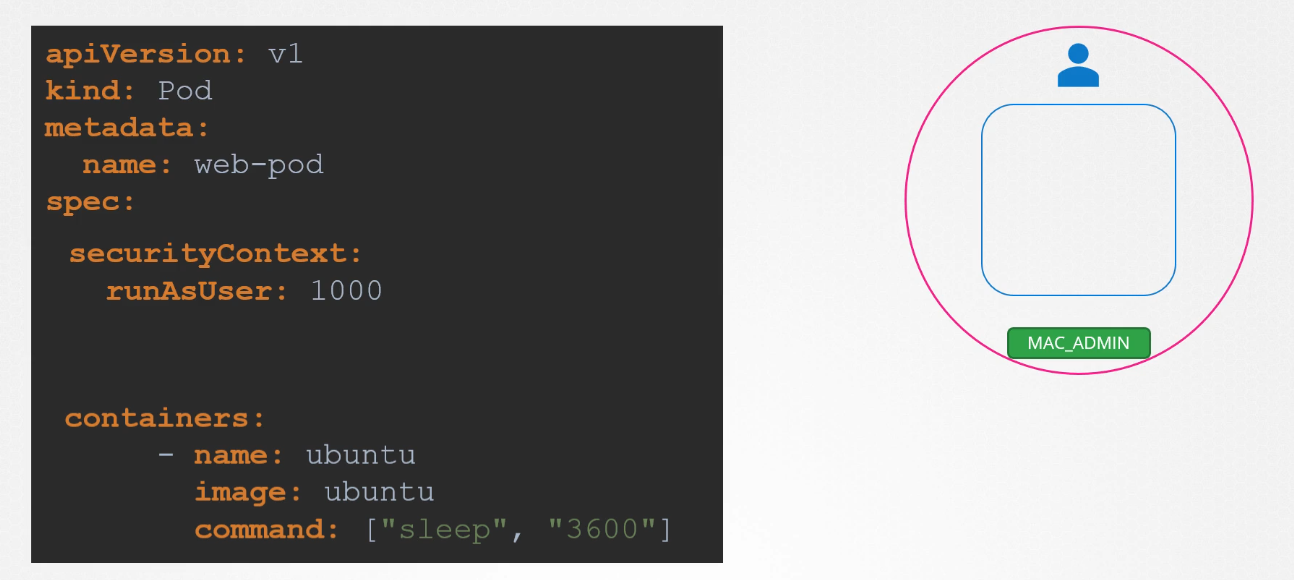
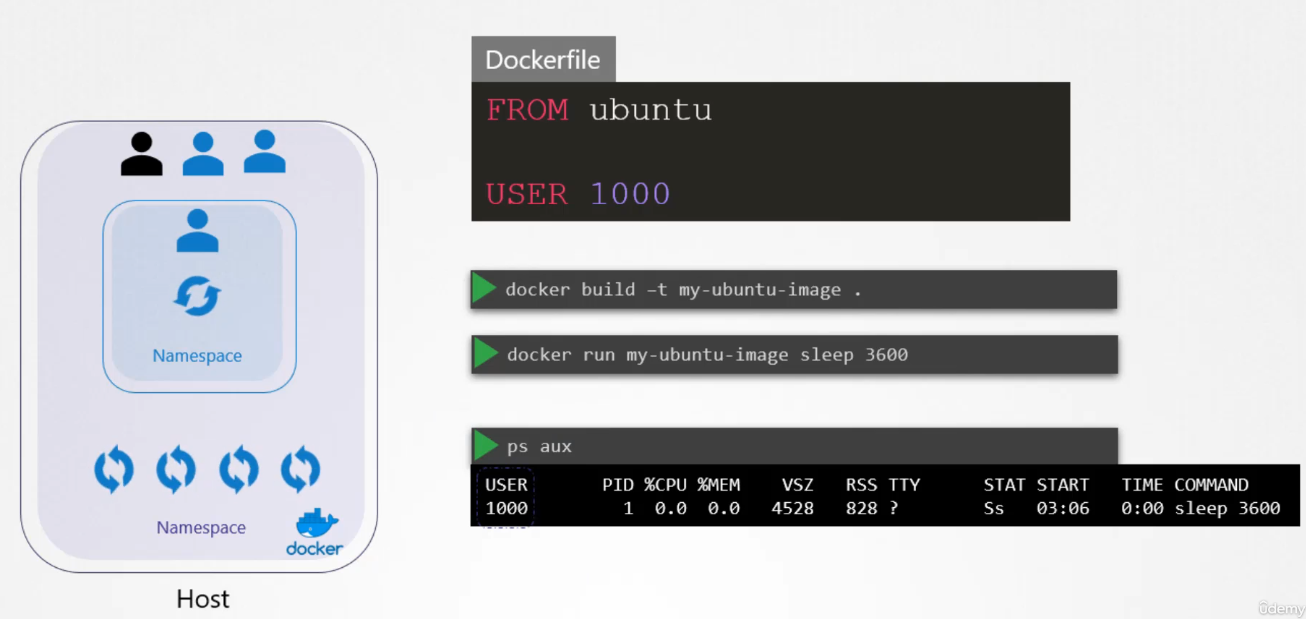
Pod-Level Security Settings: If we set the security settings at the pod level, they will be applied to all the containers in that pod.
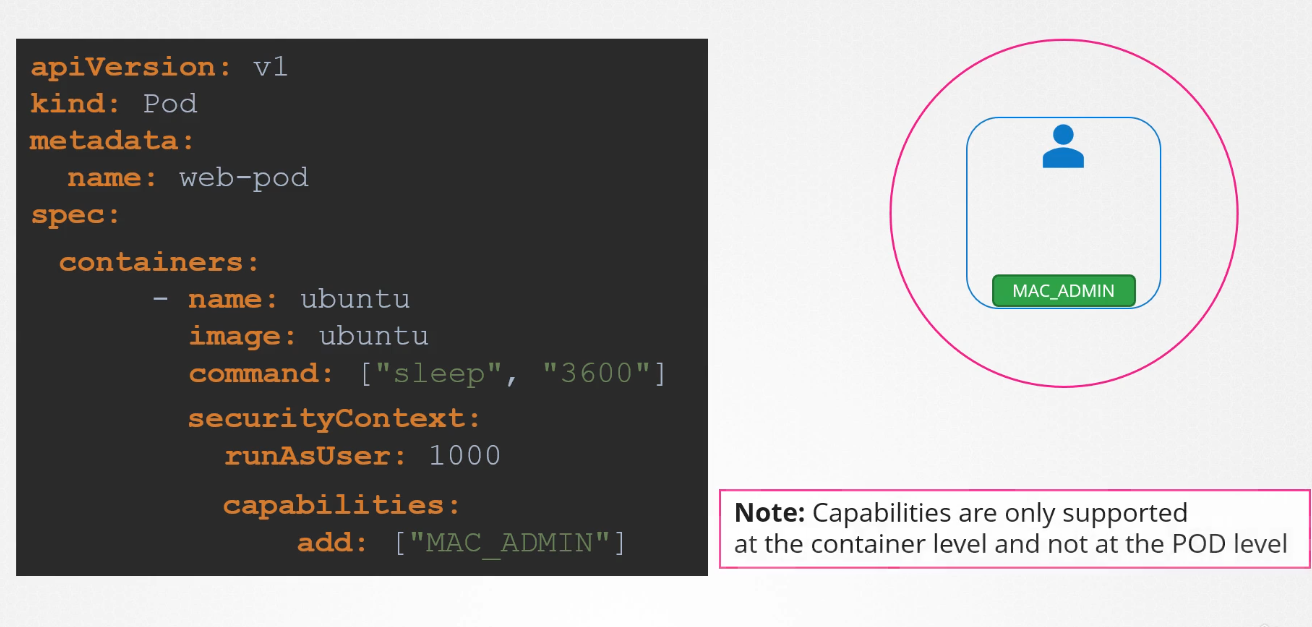
Container-Level Security Settings: If we apply the security settings to a container, they will only apply to that specific container.
Pod and Container-Level Security Settings: If we apply security settings to both the pod and the container, the container’s security configuration will override the pod’s security configuration.
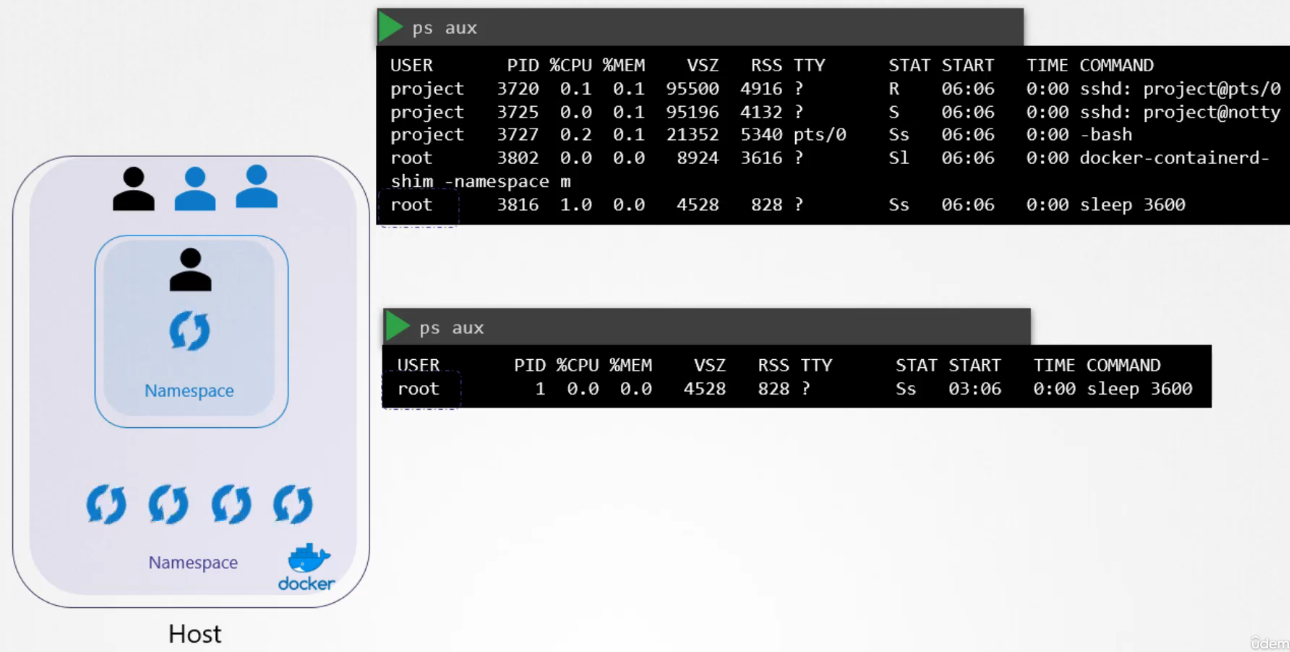
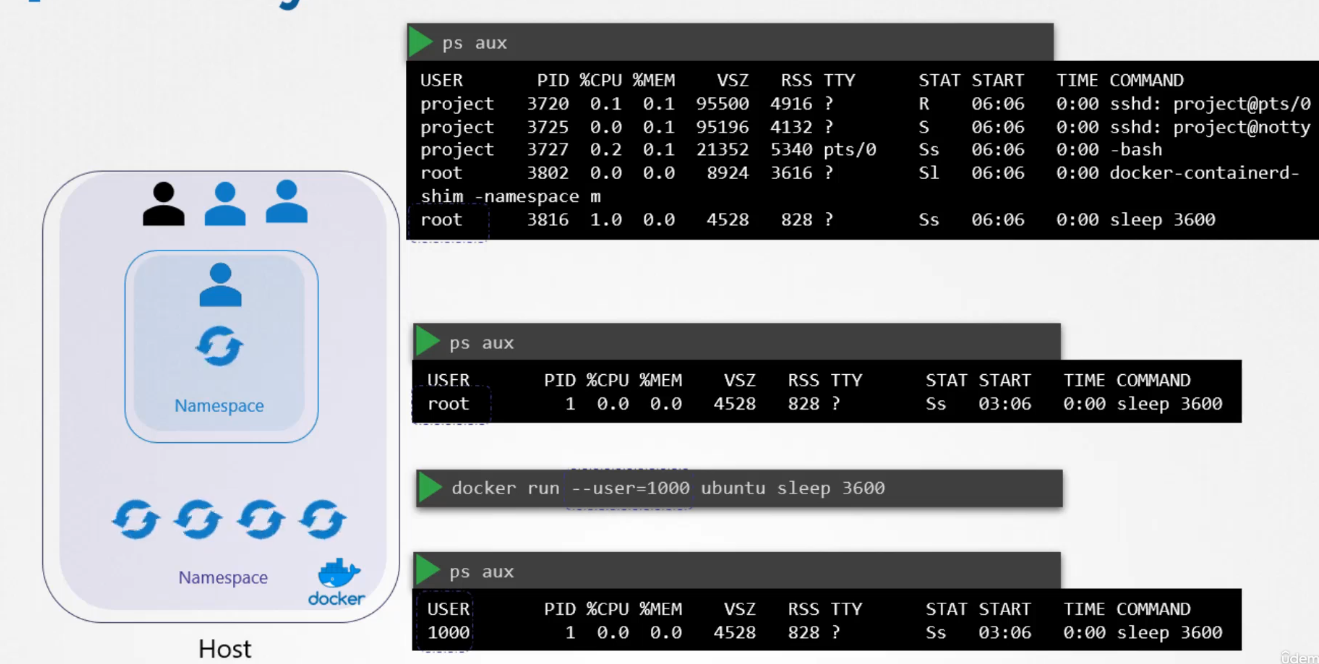
Docker uses Linux namespace security isolation. It can only see its own processes. However, the host can see the child processes and its container processes (with different PIDs though).
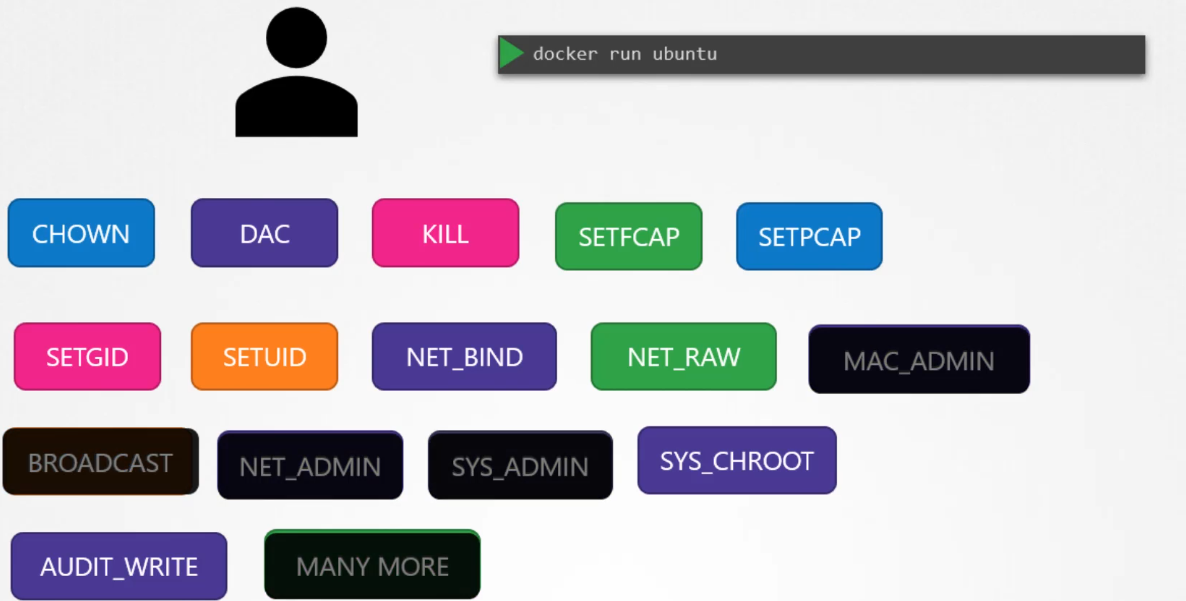
Container Root User
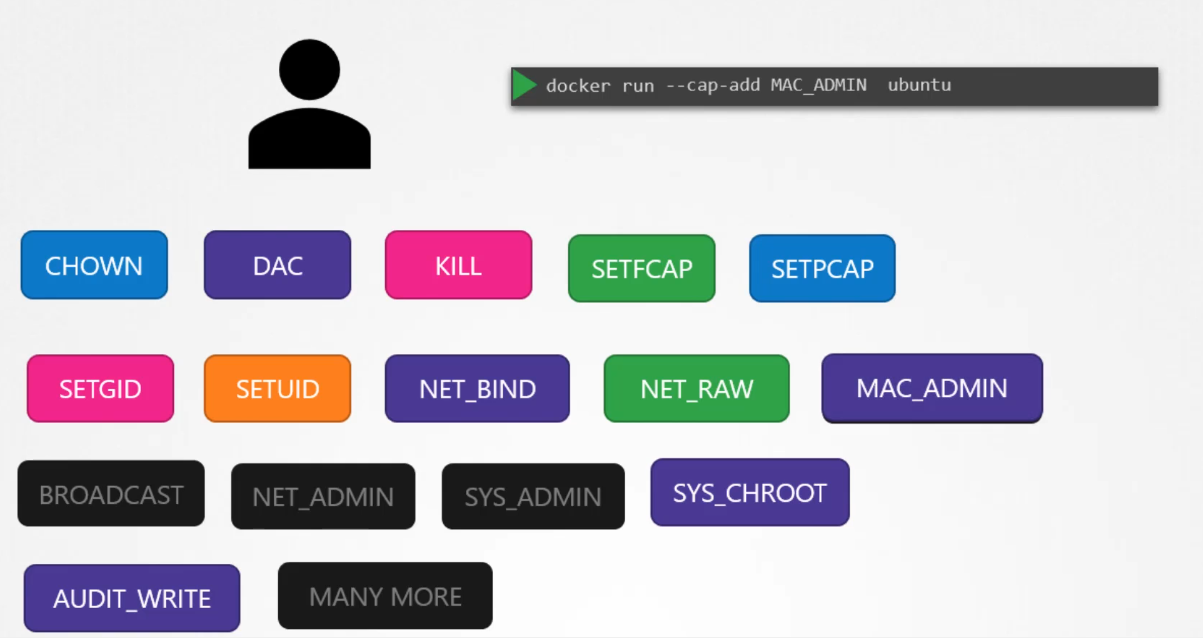
Add Capability to Container Root User
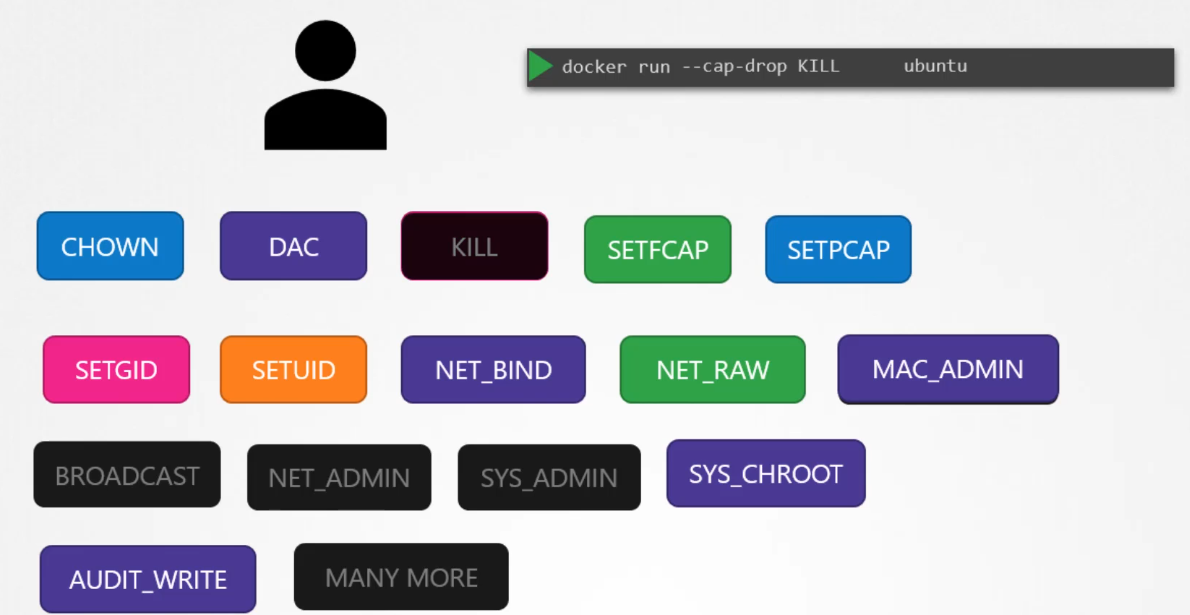
Drop Capability from Container Root User
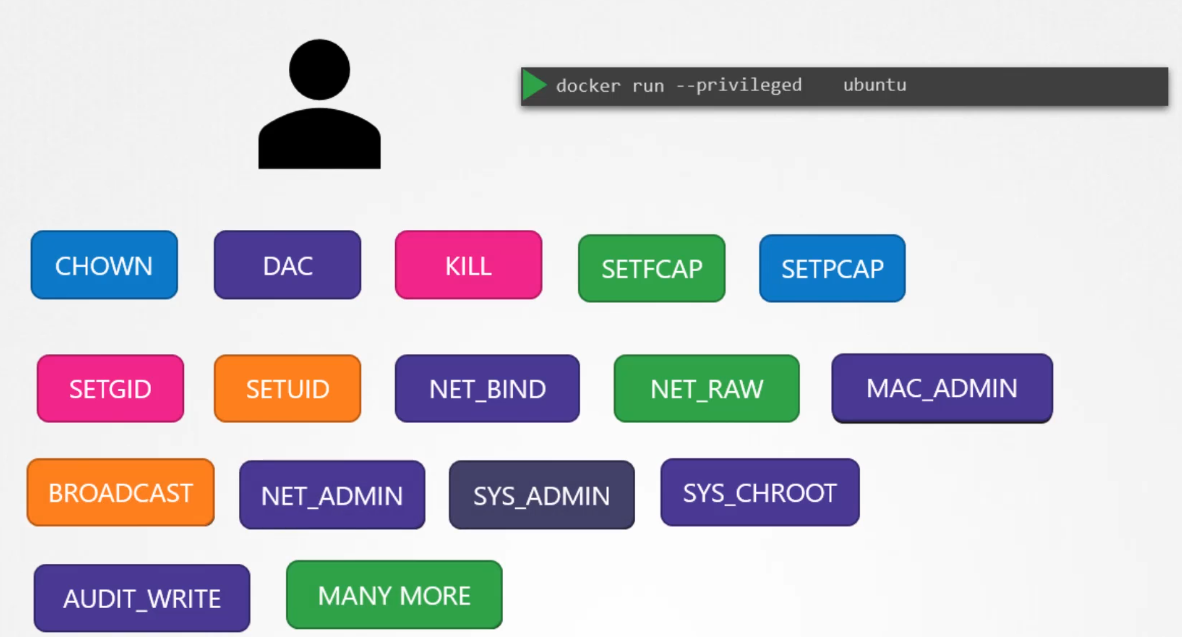
Container Root with All Privileges
Host Root User
User Security
When running containers as the root user, several questions arise about the implications of root privileges in relation to the host system:
Is the root user inside the container the same as the root user on the host?
No, the root user inside a container is not identical to the root user on the host system, but it still holds significant power. While the user IDs may be the same (UID 0), Docker implements various security mechanisms to limit the root user’s capabilities within a container, thereby reducing the potential risks.
Can processes inside the container do anything the root user can do on the host?
By default, processes inside a container running as root do not have the same level of control as the root user on the host system. Docker uses a combination of Linux namespaces and cgroups to isolate containers and control the resources they can access. Additionally, Docker restricts the container’s root user by reducing its available capabilities, limiting its power compared to the host’s root user.
Is running as root within the container dangerous?
Yes, running containers as root can be risky. Although Docker limits the power of the root user inside the container, if the container were to break out of its isolation or exploit vulnerabilities, it could potentially gain control over the host system. This is why security practices recommend avoiding running containers as root unless absolutely necessary.
How does Docker handle root privileges within containers?
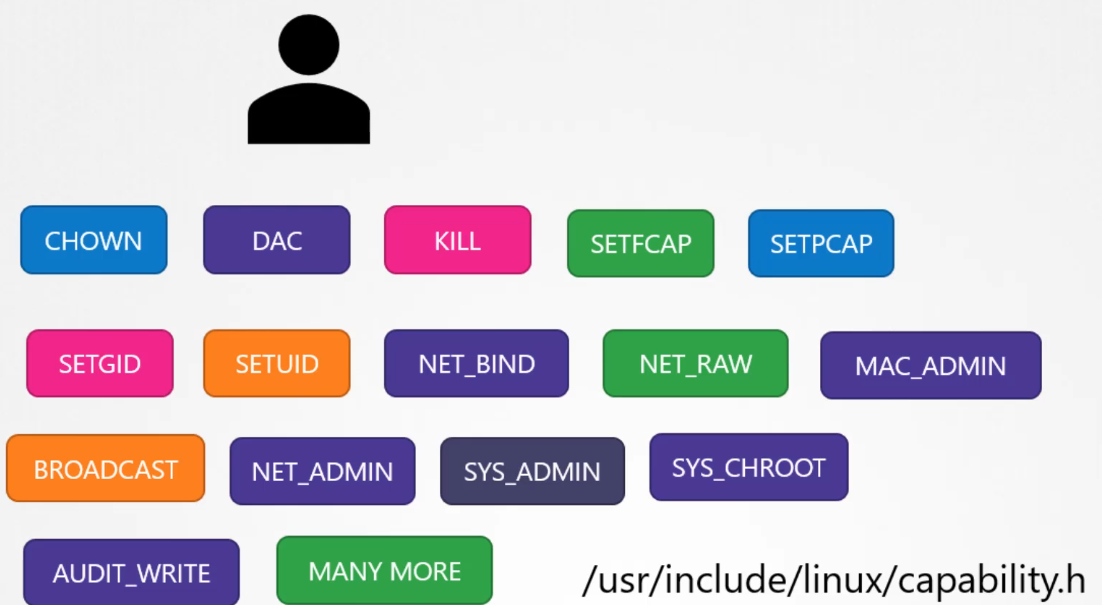
Docker uses Linux capabilities to limit the actions that the root user can perform inside a container. In Linux, capabilities are fine-grained access controls that divide root privileges into specific units. Docker reduces the container’s root user privileges to only what is necessary for most operations. For example, by default, containers cannot:
Reboot the host.
Manipulate the network configuration of the host.
Modify kernel parameters.
How to manage container privileges:
Adding capabilities: If you need to grant additional privileges to the container’s root user, you can use the --cap-add option in the Docker run command to add specific capabilities.
Dropping capabilities: You can also further reduce privileges by using the --cap-drop option, which removes specific capabilities from the container, making it even more restricted.
Privileged containers: If you want the container to have full root privileges, similar to running as root on the host, you can use the --privileged flag. However, this is highly discouraged for security reasons, as it grants the container nearly unrestricted access to the host system.
In conclusion, Docker limits the root user inside a container to mitigate the risks of running as root. However, best practices suggest avoiding root unless necessary, and always controlling which capabilities the container requires to perform its tasks safely.
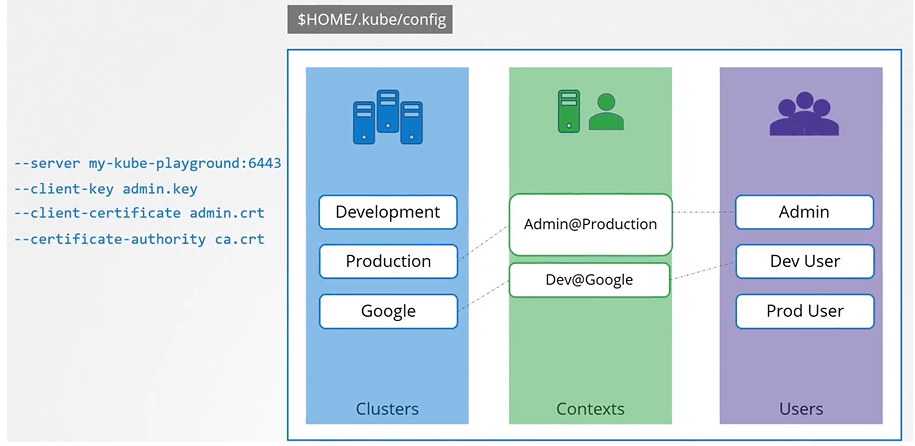
Kube Config
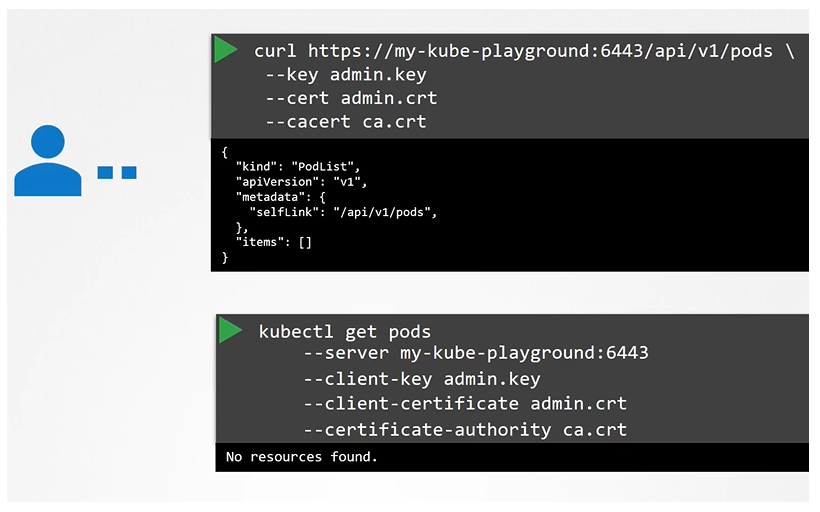
Client uses the certificate file and key to query the Kubernetes Rest API for a list of pods using curl. You can specify the same using kubectl:
We can move these information to a configuration file called kubeconfig. And the specify this file as the kubeconfig option in the command.
$ kubectl get pods --kubeconfig config
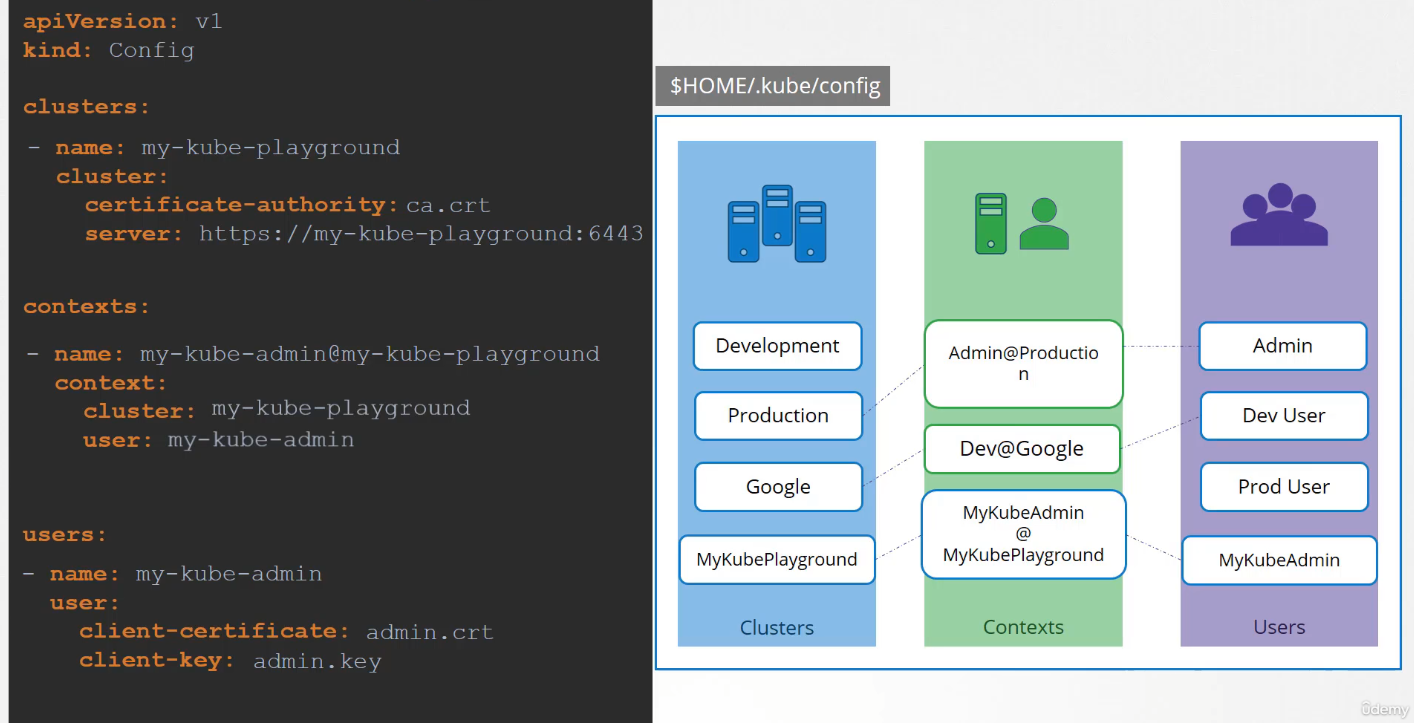
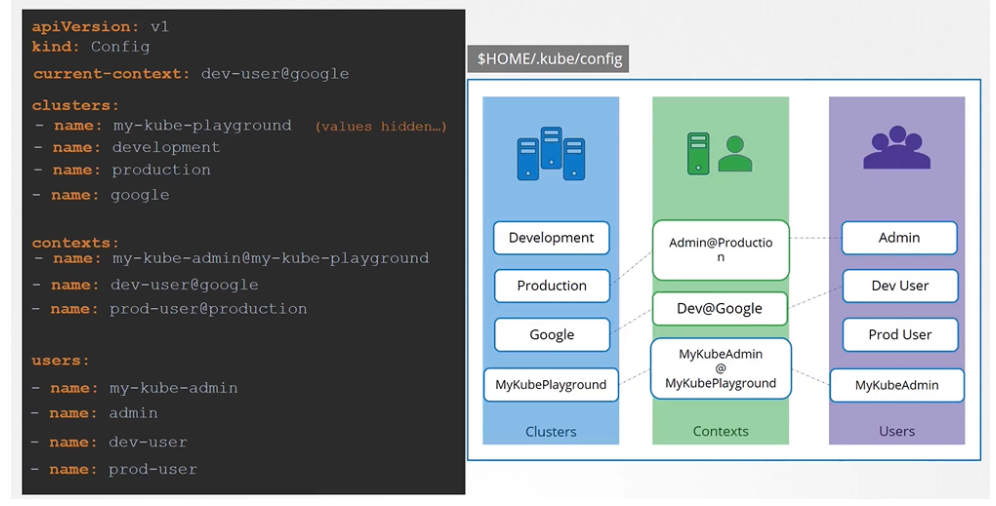
Kubeconfig file
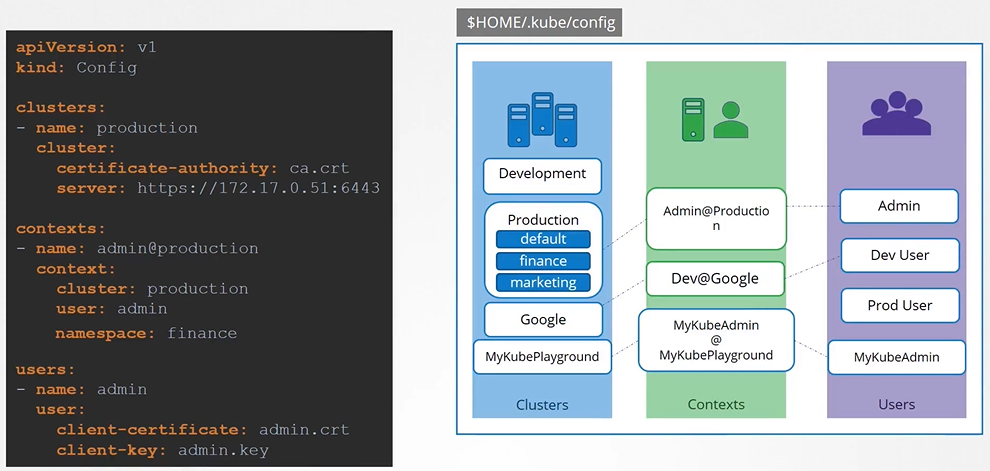
The kubeconfig file has 3 sections:
Clusters
Contexts
Users
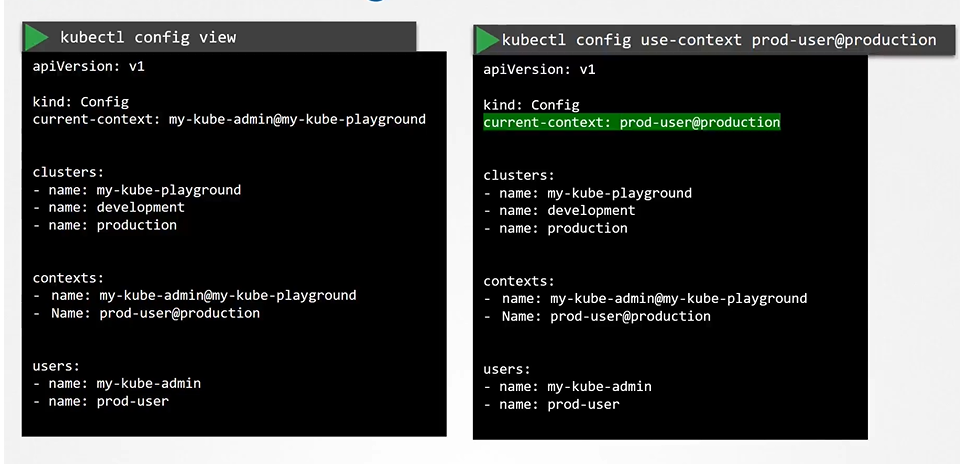
How to say which context to use as a default one? we set the current-context to the default one.
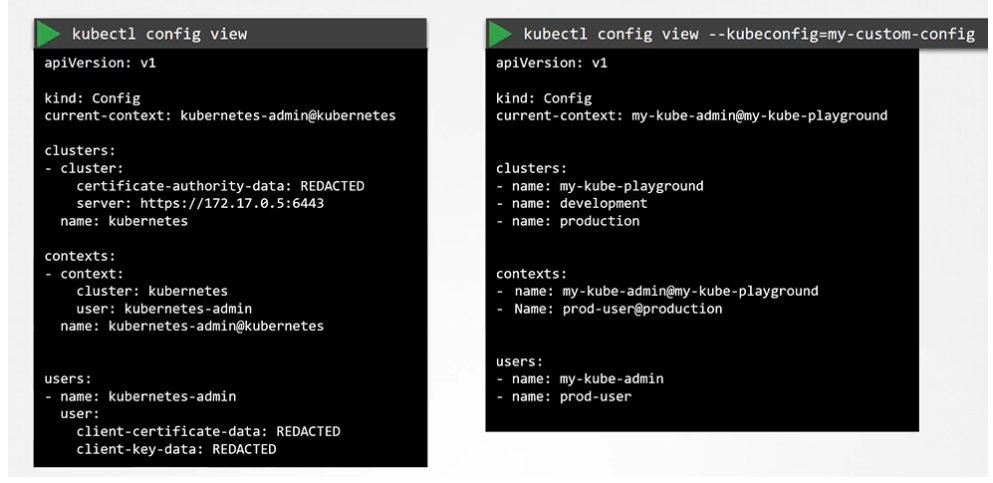
To view the current file being used
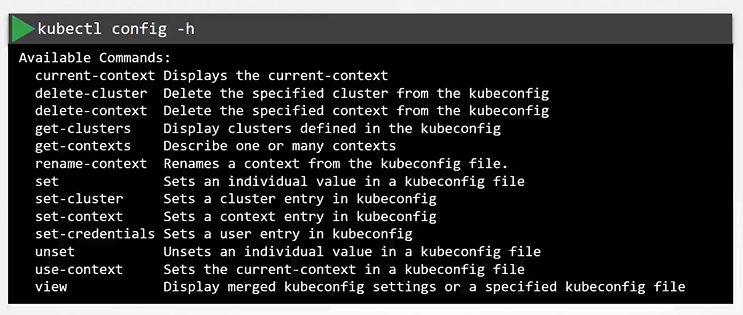
$ kubectl config view
You can specify the Kube config file with kubectl config view with --kubeconfig flag
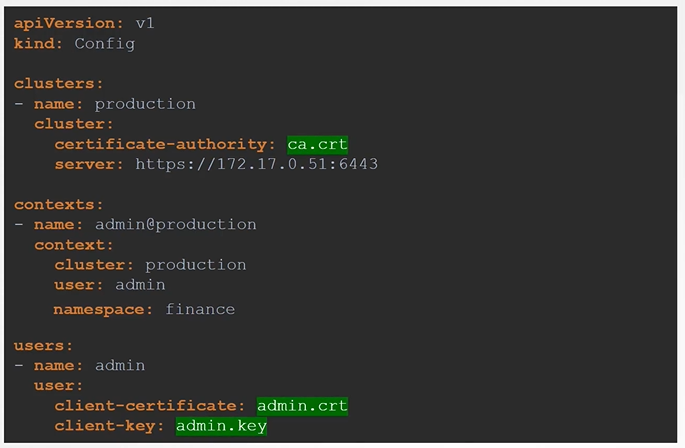
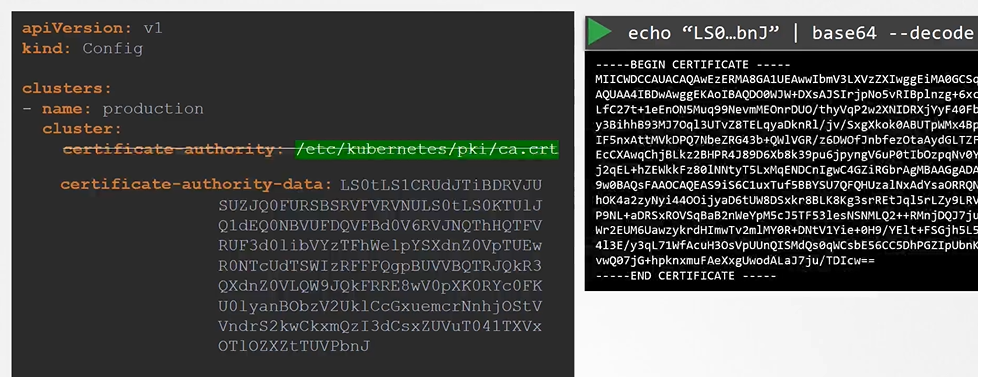
We have two different way of providing the certs for config.
Give the address of where the cert is located at
Paste the cert data directly into the config
API and APIs
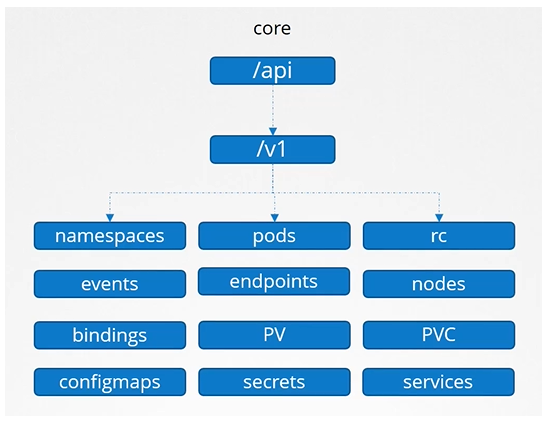
Core
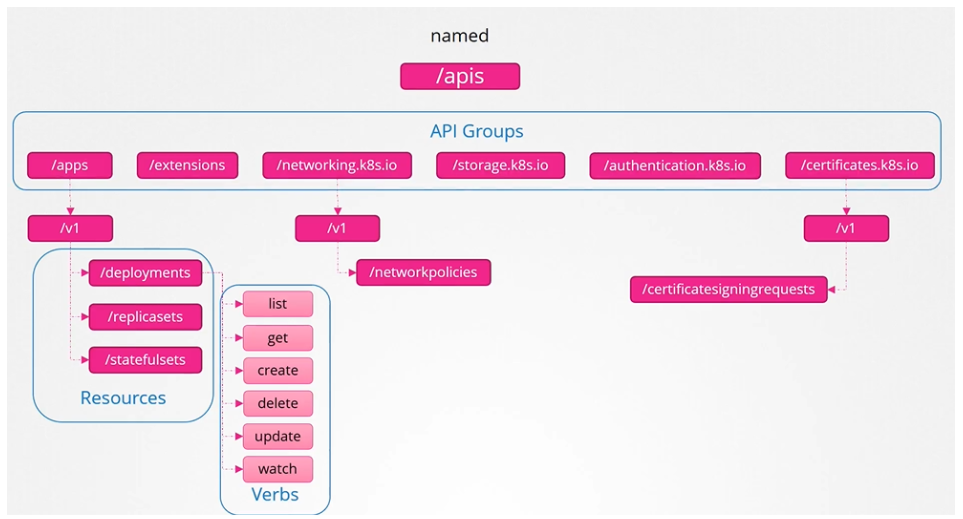
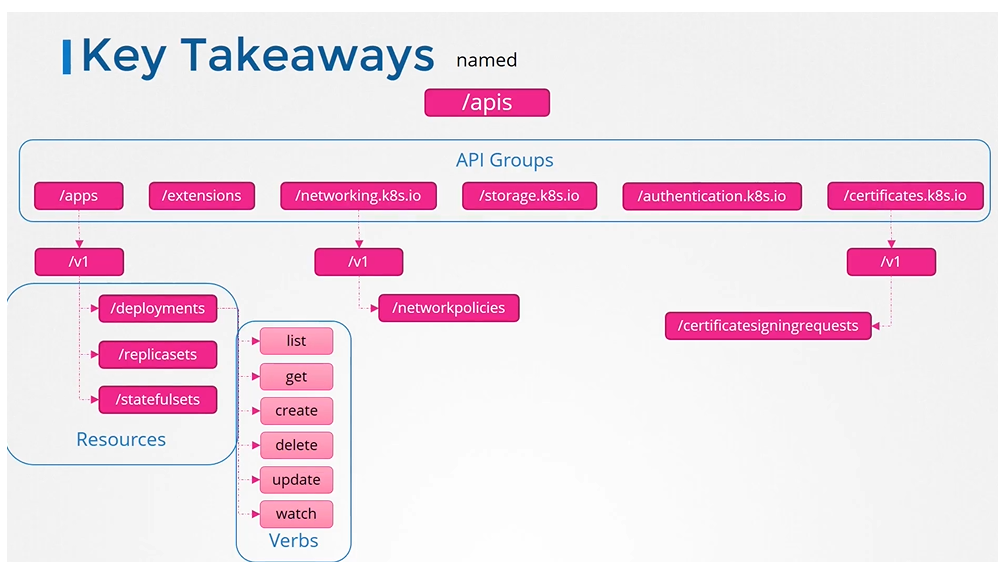
The Kubernetes API is divided into groups based on functionality:
Core API Group: Includes fundamental resources like Pods, Namespaces, Services, ConfigMaps, Secrets, PersistentVolumes, and more.
Named API Groups: Organizes newer features under categories like apps, networking, storage, authentication, authorization, etc.
apps → Deployments, ReplicaSets, StatefulSets
networking.k8s.io → NetworkPolicies
certificates.k8s.io → CertificateSigningRequests
Each resource within these groups supports specific actions (verbs) like list, get, create, update, delete, and watch. You can check API group details on the Kubernetes API reference page or directly via the cluster API at <master-node>:6443.
Named group
More organized and going forward all the newer features are going to be made available to these named groups.
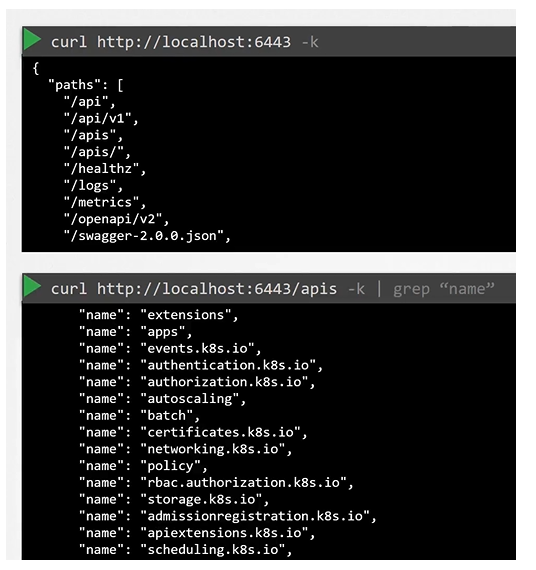
To list all the api groups:
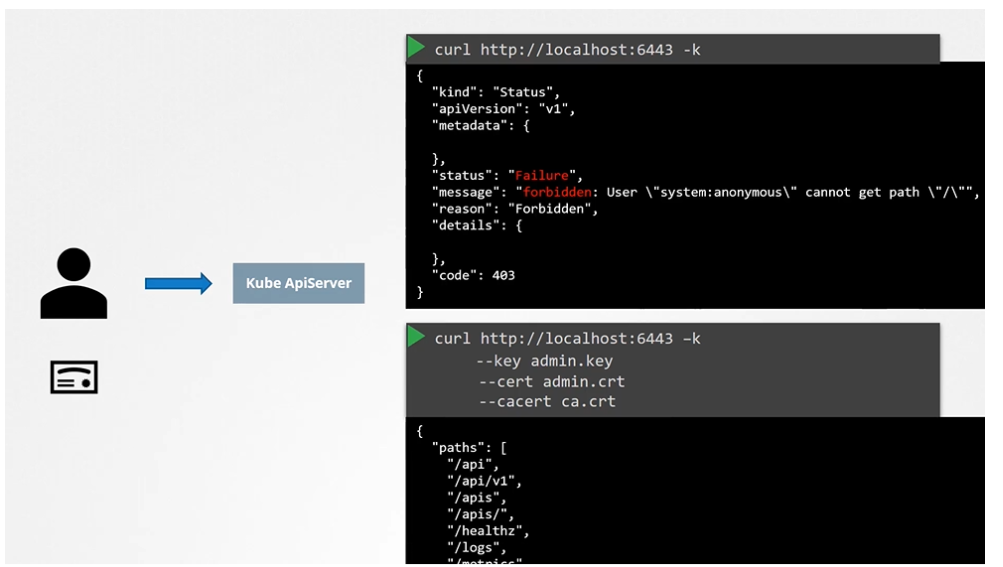
Note on accessing the kube-apiserver
You have to authenticate by passing the certificate files.
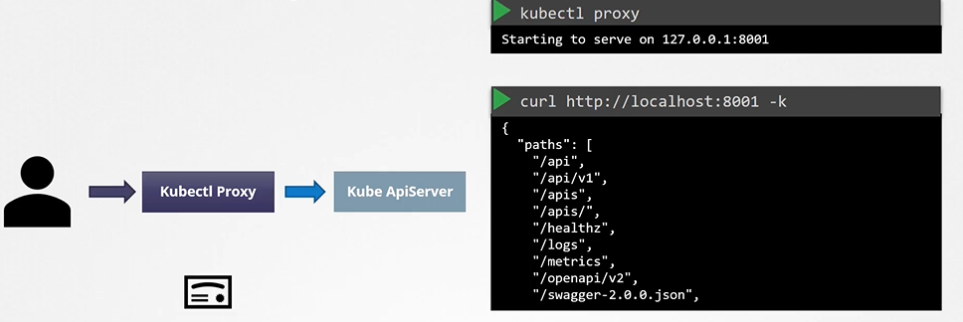
An alternate is to start a kubeproxy client so that you don’t have to provide the cert all the time.
Kube proxy !== KubeCTL proxy
API access requires authentication, which can be done via certificates or kubectl proxy.
Don’t confuse kubectl proxy with kube-proxy.
kube-proxy manages network connectivity between Pods.
kubectl proxy is an HTTP proxy to access the API server securely.
API Groups
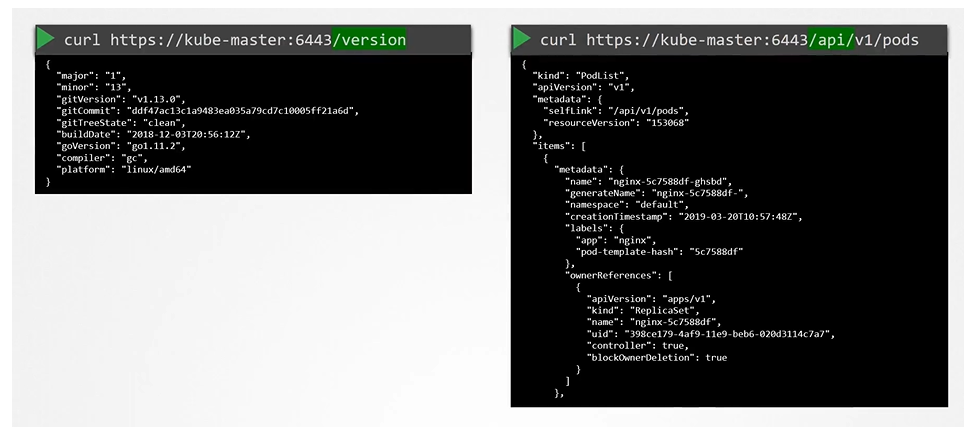
The Kubernetes API is grouped into multiple such groups based on their purpose. Such as one for APIs, one for healthz, metrics and logs etc.
Authentication & Authorization
Category
Methods
Who can access? (Authentication Mechanism)
Files (Username and Password)
Files (Username and Tokens)
Certificates
External Authentication Providers (LDAP)
Service Accounts
What can they do? (Authorization)
RBAC Authorization
ABAC Authorization
Node Authorization
Webhook Mode
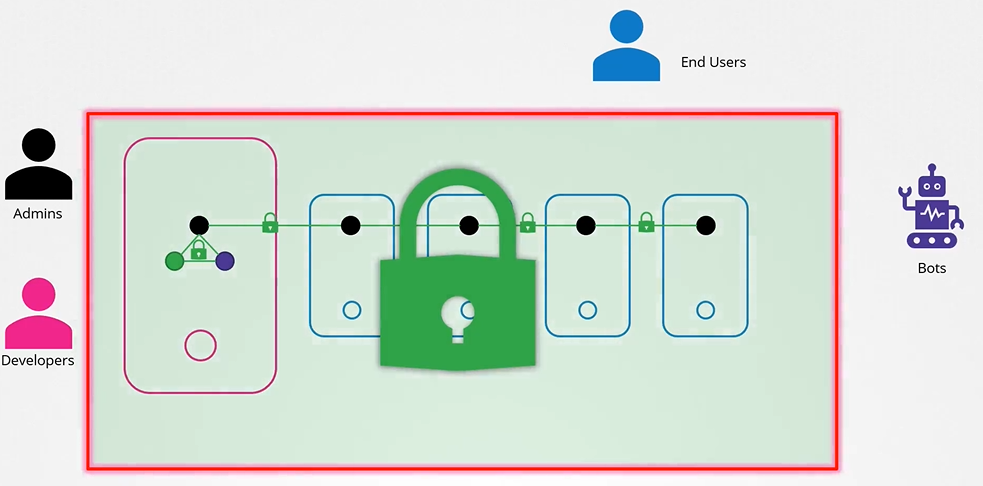
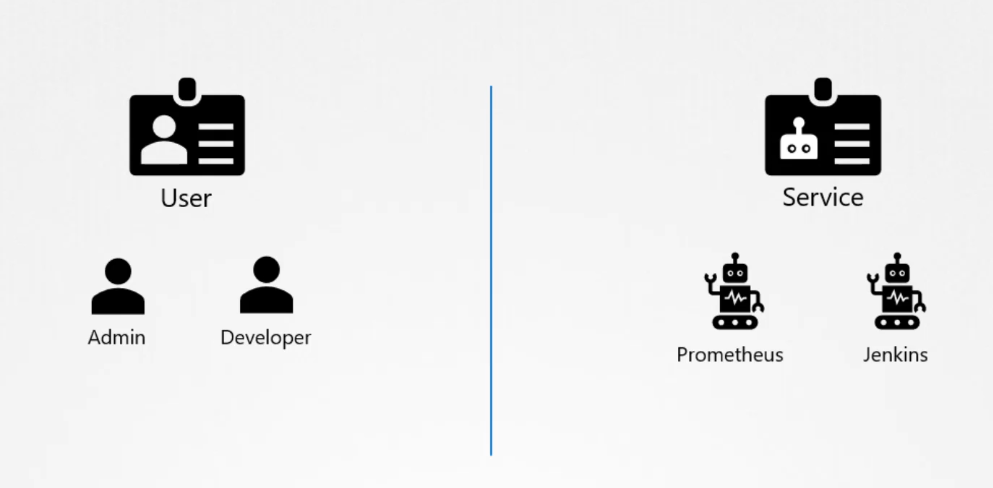
End users are being protected by the application itself. So, we left with 2 types of users:
Humans, such as the Administrators and Developers
Robots such as other processes/services or applications that require access to the cluster.
hint about user authentication and authorization
K8s does not manage the user authentication itself, it leverages LDAP or uses certificates. API server integrates with it to check if user is authenticated.
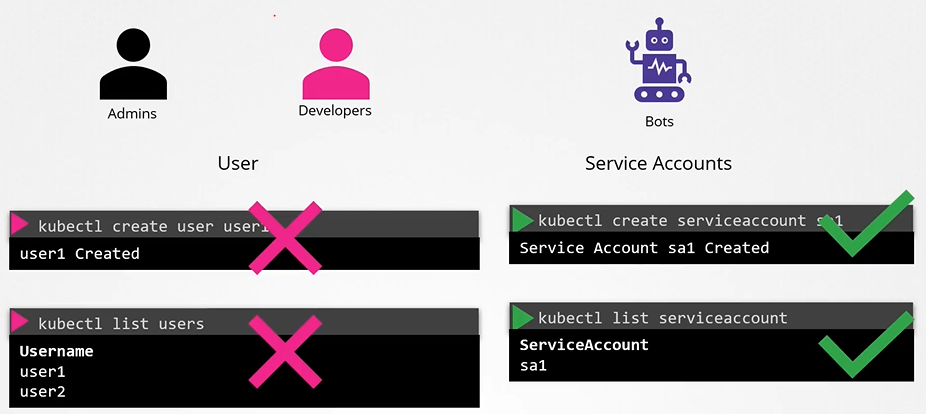
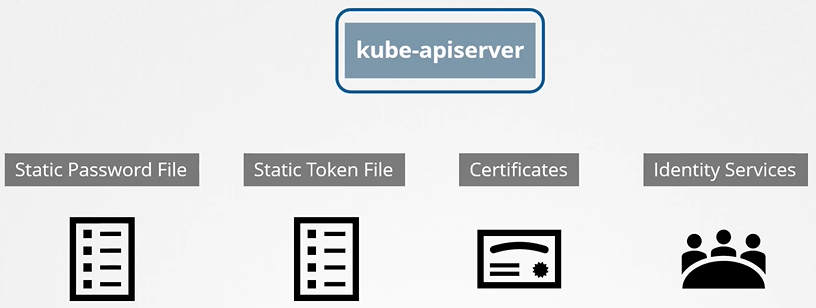
Unlike traditional systems, Kubernetes does not natively manage user accounts. Instead, it relies on external sources for authentication, such as:
A file containing user details
Certificates
Third-party identity services like LDAP
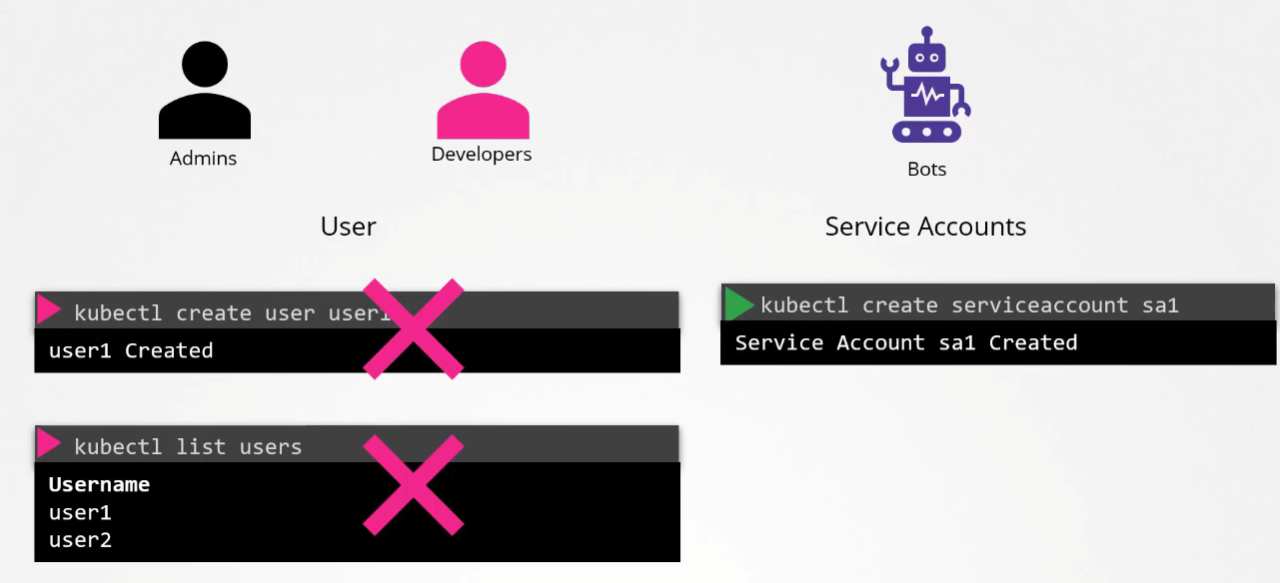
Because of this, you cannot create or list user accounts within Kubernetes like you would in a typical user management system. However, Kubernetes can manage service accounts, which we’ll cover in a separate section.
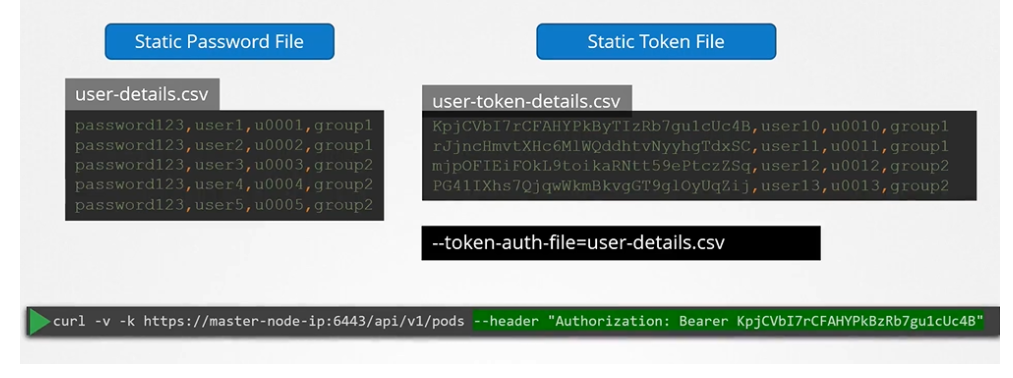
Static password file – A CSV file containing usernames and passwords
Static token file – Similar to a password file but uses tokens instead
Certificate-based authentication – Uses certificates for identity verification
External authentication providers – Connects to services like LDAP or Kerberos
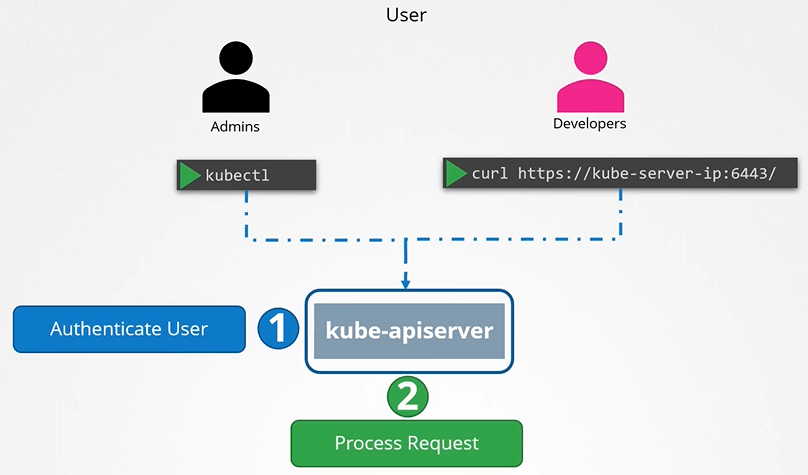
How kube-apiserver authenticates requests
How kube-apiserver does the authentication? Below is a list of authentication mechanism that api-server supports.
Static password file
The simplest authentication method is using a static password file. The file follows this format:
password,username,user_id
Optionally, you can add a fourth column for group details to assign users to groups.
To enable this, pass the file as an option to the kube-apiserver and restart it. If you set up your cluster with kubeadm, modify the kube-apiserver pod definition file. The kubeadm tool will then automatically restart the kube-apiserver with the updated settings.
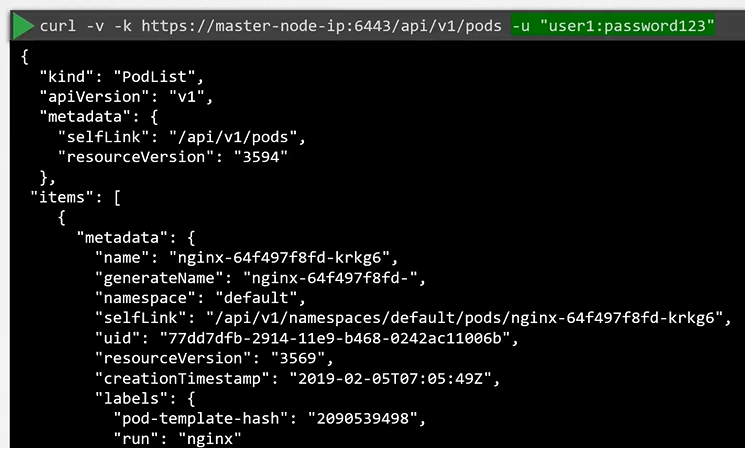
For authentication, use a curl command specifying the user and password:
All user access is managed by apiserver and all of the requests goes through apiserver.
Authentication is about where Kubernetes users come from. By default, a local Kubernetes admin account is used, and authentication is not required.
In more advanced setups, you can create your own user accounts (covered in CKA).
The kubectl config specifies which cluster to authenticate.
Use kubectl config view to see current settings.
The config is read from ~/.kube/config.
Authenticate user
To authenticate using the basic credentials while accessing the API server specify the username and password in a curl command.
We can have additional column in the user-details.csv file to assign users to specific groups.
Careful
This is not a recommended authentication mechanism. Consider volume mount while providing the auth file in a kubeadm setup. Setup role based authorization for the new users.
Service Accounts
While user accounts are meant for human users (like developers or administrators), service accounts are used by applications and automated tools like Prometheus or Jenkins to communicate with the Kubernetes cluster(machine to machine).
Types of Accounts in Kubernetes:
User accounts: Used by humans, like developers deploying applications or administrators managing the cluster.
Service accounts: Used by applications to interact with the Kubernetes API (e.g., monitoring apps like Prometheus or build tools like Jenkins).
RBAC is used to connect a ServiceAccount to a specific Role.
Every Pod uses the default ServiceAccount to contact the API server.
This default ServiceAccount allows a resource to get information from the API server but not much else.
Each ServiceAccount uses a secret to automount API credentials.
Example of Using a Service Account:
To access the Kubernetes API, an application needs to be authenticated using a service account. For example, a custom Kubernetes dashboard application built in Python can list all the pods in the cluster by sending requests to the Kubernetes API.
To create a service account for this, you would run:
kubectl create serviceaccount dashboard-sa
This command creates:
A service account object
Generates a token
Stores that token inside a secret object (e.g., dashboard-sa-token-kbbdm).
This token is used by external applications to authenticate.
Viewing and Using Service Account Tokens:
To view the created service accounts, you can use:
kubectl get serviceaccount
The service account’s token is stored as a secret object, and you can view it by describing the secret using:
kubectl describe secret <secret-name>
This token is then used as a bearer token when making REST API calls to the Kubernetes API (e.g., using cURL), or it can be copied into an application’s authentication configuration.
Automatically Mounting Service Account Tokens:
The default service account’s token is automatically mounted to pods as volume, if no other service account is specified.
If the application (like Prometheus) is hosted within the Kubernetes cluster itself, the token can be automatically mounted as a volume inside the pod. This is done automatically by Kubernetes when the pod is created, making it easier for the application to access the token without manual intervention.
The Default Service Account:
Every Kubernetes namespace comes with a default service account that is automatically created. Whenever a pod is created, the default service account token is mounted to the pod as a volume under /var/run/secrets/kubernetes.io/serviceaccount.
The default service accounthas limited permissions, typically restricted to basic API queries.
Customizing Service Accounts:
If you’d like to use a different service account, you can modify the pod’s definition file by specifying the desired service account in the serviceAccount field.
You cannot change the service account for an already running pod; the pod needs to be deleted and recreated.
For deployments, changing the service account in the pod definition will automatically trigger a new rollout with updated service accounts. Because the deployment manages the pods
Key Kubernetes Changes in Versions 1.22 and 1.24:
Version 1.22 – TokenRequestAPI:
Bound Service Account Tokens were introduced via the TokenRequestAPI (as part of Kubernetes Enhancement Proposal 1205).
Previously, service account tokens (JWTs) had no expiry date and weren’t audience-bound, creating security risks. The TokenRequestAPI addresses these issues by generating tokens that are:
Time-bound (with a defined expiry date).
Audience-bound (specific to the requesting API).
Object-bound (specific to the service account).
These tokens are mounted as a projected volume when the pod is created, replacing the older method of mounting tokens via secret objects.
The TokenRequestAPI allows tokens to be generated for each pod dynamically when pod is created.
1
Version 1.24 – Secret-Based Token Management:
Before Kubernetes 1.24, service account creation would automatically generate a secret containing a non-expiring token. Starting with version 1.24, secret-based token generation was removed. Now, if you need a token for a service account, you must manually generate it using:
kubectl create token <service-account-name>
These tokens have an expiry time, which is one hour by default unless specified otherwise. This approach provides better security by ensuring that tokens expire and are not valid indefinitely.
Non-expiring tokens can still be created manually, but this is discouraged. To create one, you must define a secret object with the type kubernetes.io/service-account-token, and specify the service account name in the metadata section. However, the Kubernetes documentation advises against using non-expiring tokens unless absolutely necessary due to security risks.
Managing Service Account Tokens in Pods:
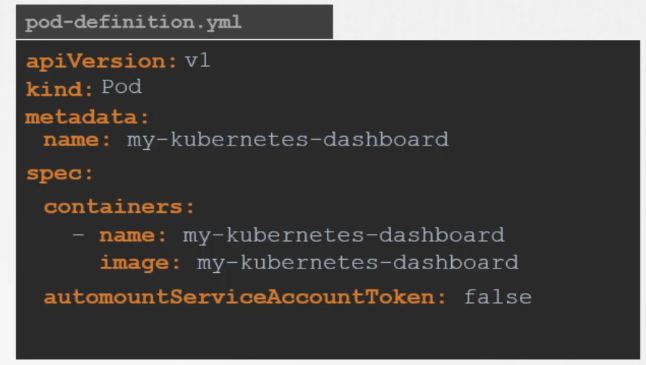
By default, Kubernetes automatically mounts the service account token for a pod unless specified otherwise. To prevent this, you can set the field automountServiceAccountToken: false in the pod’s specification.
In this example:
The automountServiceAccountToken: false field under spec ensures that Kubernetes does not automatically mount the service account token in the Pod.
The Pod is running an nginx container, but without the service account token being mounted by default.
If you need a secure, temporary token for your application inside the pod, use the TokenRequestAPI to provision such tokens instead of relying on non-expiring secrets.
Example:
serviceAccountName: custom-service-account: Specifies the service account that will be used.
The TokenRequestAPI is utilized via the serviceAccountToken projection in the volumes section:
expirationSeconds: 3600: Configures the token to expire after 1 hour (you can adjust the duration).
audience: your-audience: Specifies the audience for the token.
The container reads the token from the projected path (/var/run/secrets/tokens/temp-token).
The older token system with non-expiring tokens posed security risks, as tokens remained valid as long as the service account existed. The new system introduced in Kubernetes 1.22 and 1.24 improves security by making tokens time-bound and audience-specific.
Avoid creating non-expiring tokens unless you absolutely cannot use the TokenRequestAPI. The API-generated tokens provide a safer and more scalable way to authenticate applications running in the Kubernetes environment.
Summary of Commands:
Create a service account:
kubectl create serviceaccount <account-name>
View service accounts:
kubectl get serviceaccount
View the token of a service account:
kubectl describe secret <secret-name>
Create a new token for a service account:
kubectl create token <service-account-name>
If a pod is controlled by a deployment and it gets updated for its service account, it will update the deployment and trigger a new rollout.
Understanding Service Account Permissions
A Cluster Administrator can use RBAC (Role-Based Access Control) to control what a ServiceAccount can access.
Custom ServiceAccounts can be created and given extra permissions to allow Pods more access to cluster resources.
Permissions can be set at the namespace or cluster level using Roles and RoleBindings.
Role: Specifies the permissions for accessing API resources.
RoleBinding: Links the ServiceAccount to a specific Role.
Troubleshooting Authentication Problems
RBAC configurations are not a part of CKAD.
Access to the cluster is configured through a ~/.kube/config file.
This file is copied from the control node in the cluster, where it is stored as /etc/kubernetes/admin.conf.
Use kubectl config view to check the contents of this file.
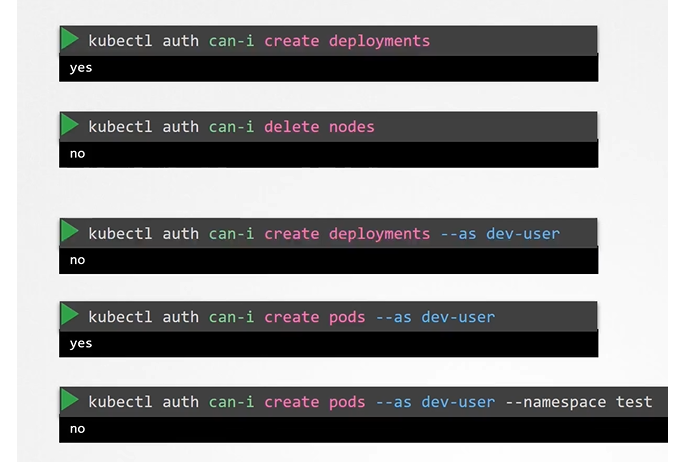
For additional authorization-based problems, use kubectl auth can-i:
$ kubectl auth can-i create pods
Troubleshooting RBAC-based access is covered in Certified Kubernetes Security (CKS).
Authorization
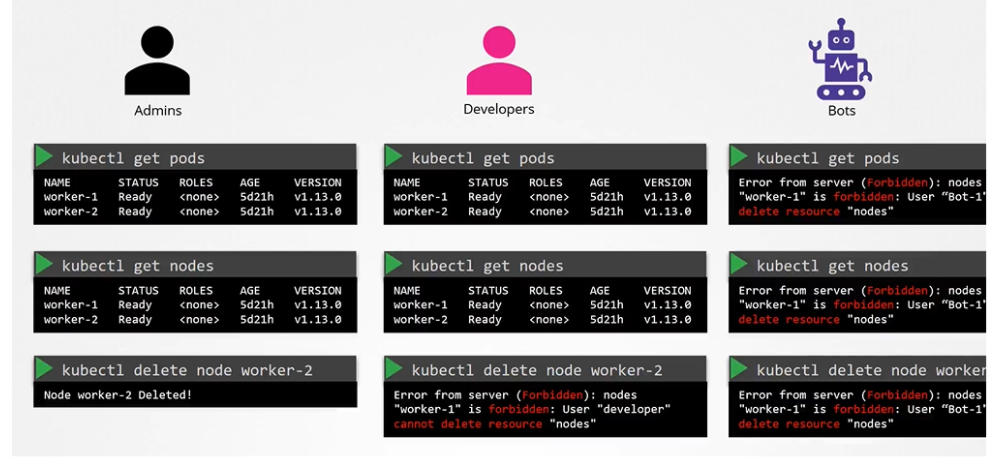
When we share our cluster between different organizations or teams, by logically partitioning it using name spaces, we want to restrict access to the users to their name spaces alone. That is what authorization can help you within the cluster.
As an admin, you can do all operations:
$ kubectl get nodes
$ kubectl get pods
$ kubectl delete node worker-2
Authorization mechanism
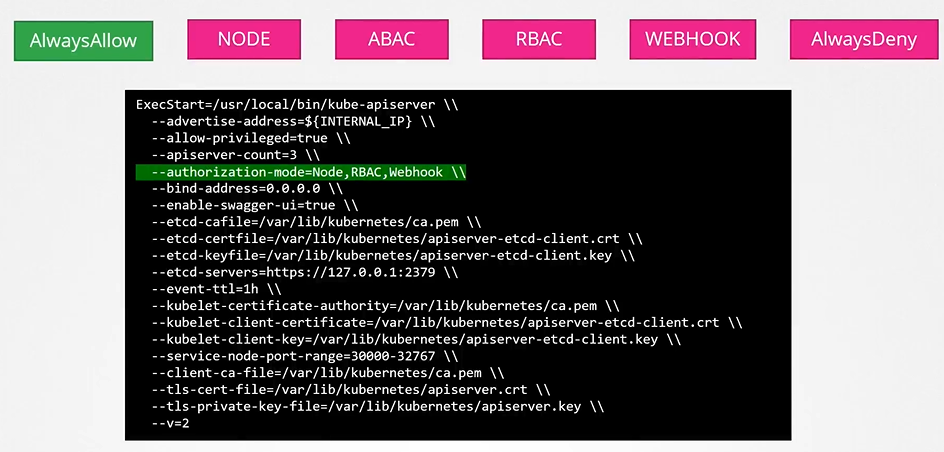
There are different authorization mechanisms supported by Kubernetes
Node Authorization
Attribute-based Authorization (ABAC)
Role-Based Authorization (RBAC)
Webhook
Node authorizer
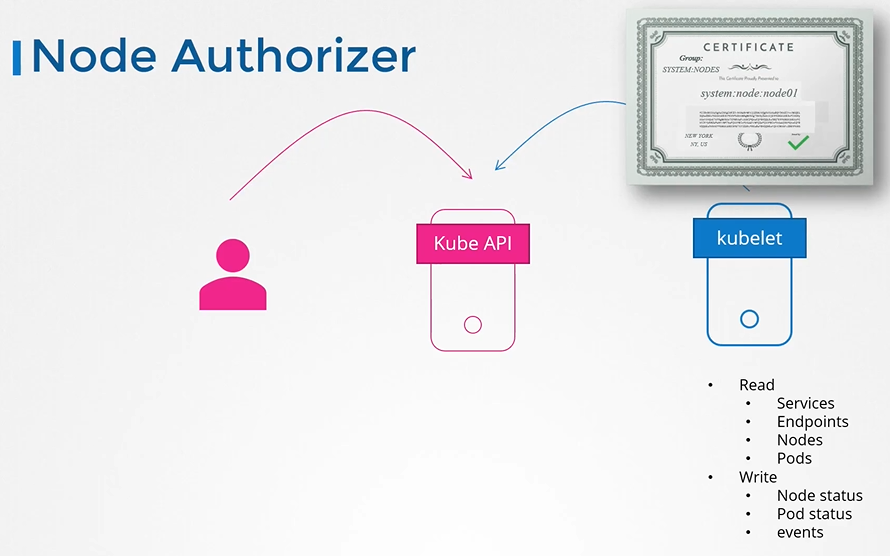
Request comings from node are authorized with node authorizer.
Kubelets should belong to the system nodes group and have names prefixed with system:node.
Thus, any request coming from a user with the name starting with system:node and part of the system nodes group is authorized by the node authorizer, granting the privileges required for a kubelet. This pertains to access within the cluster.
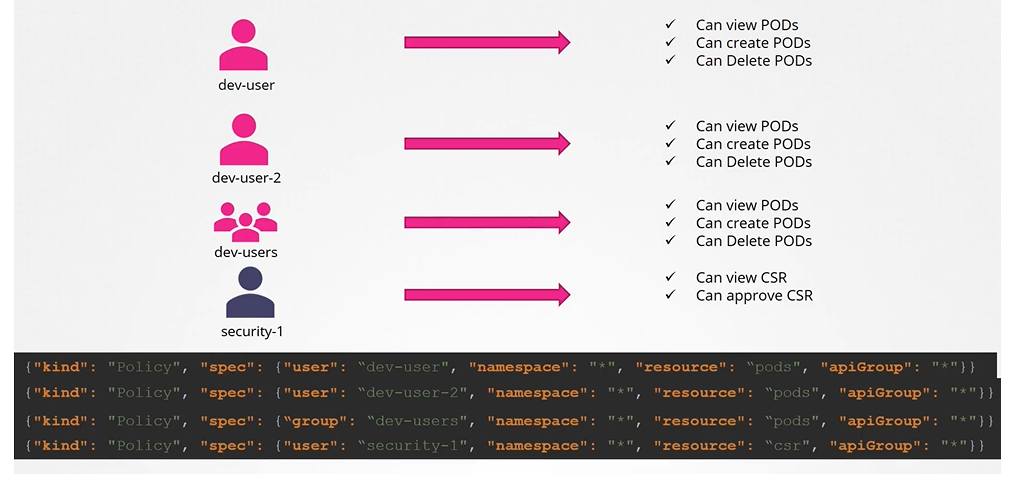
ABAC (Attribute based access controls)
Now, every time you need to add or make a change in the security, you must edit this policy file manually and restart the Kube API server. As such, the attributes based access control configurations are difficult to manage.
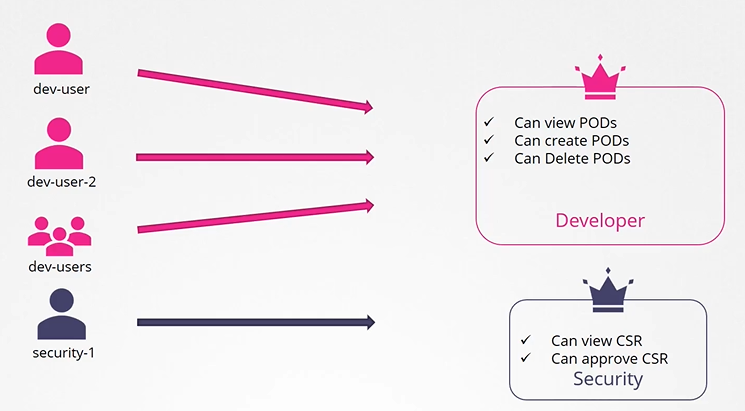
RBAC (role based access controls)
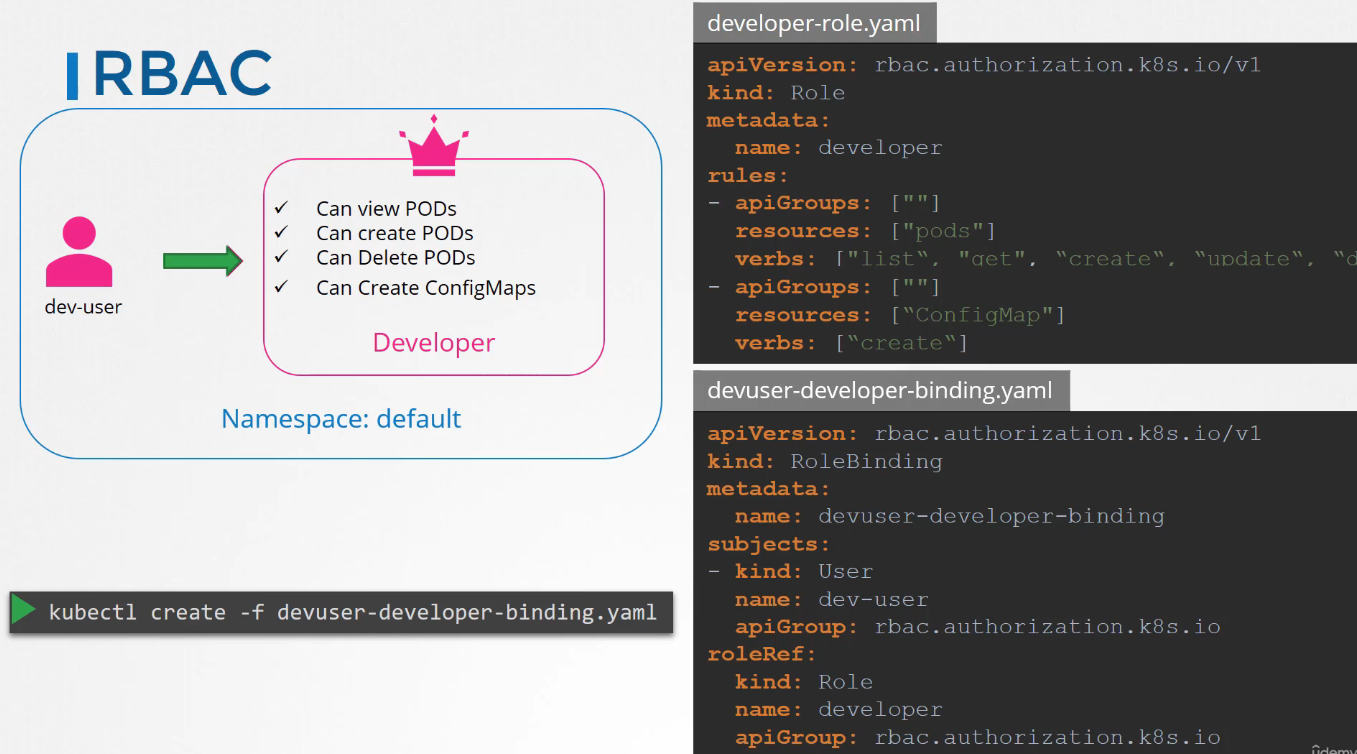
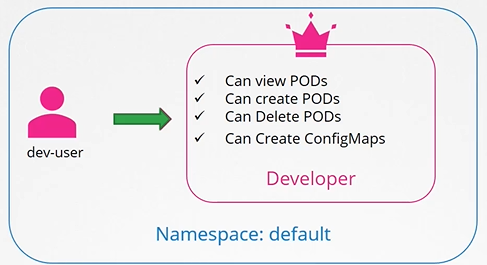
Role based access controls make these much easier. With role based access controls, instead of directly associating a user or a group with a set of permissions, we define a role. In this case, for developers, we create a role with the set of permissions required for developers.
Then, we associate all the developers to that role. Similarly, create a role for security users with the right set of permissions required for them. Then, associate the user to that role, going forward. Whenever a change needs to be made to the user’s access we simply modify the role and it reflects on all developers immediately.
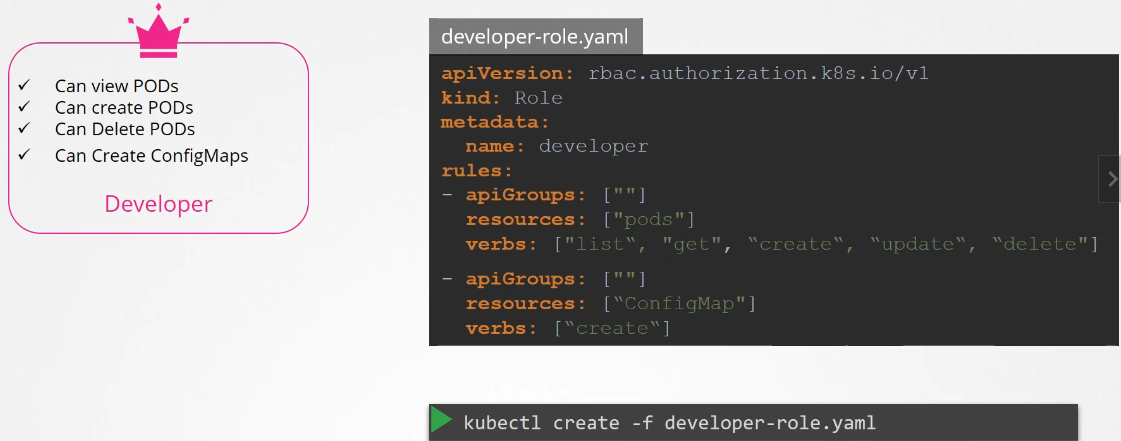
How to create roles
We create role by the Role object.
Each role has 3 sections
apiGrups
resources
verbs
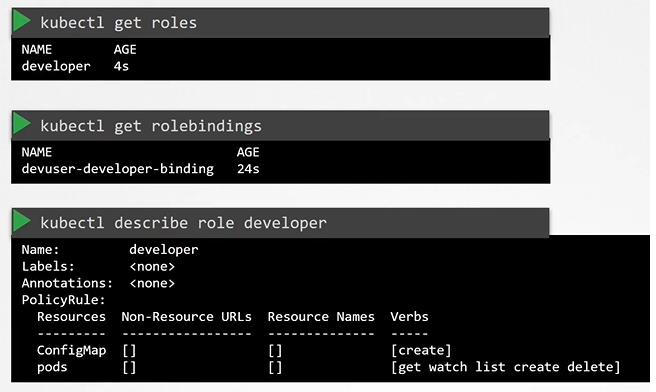
Create the role with kubectl command
$ kubectl create -f developer-role.yaml
Q: How do you define an RBAC Role in Kubernetes that allows a user in the blue namespace to get, watch, create, and delete a specific pod (> dark-blue-app), while also granting permission to create deployments?
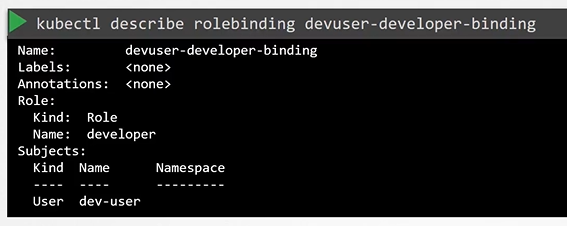
[!question]- Q: How do you create a Role in the default namespace that allows listing, creating, and deleting pods, and then bind it to a user named dev-user?
To create a Role:-
kubectl create role developer --namespace=default --verb=list,create,delete --resource=pods
You can impersonate as a separate user as well to check/test if they have the right access.
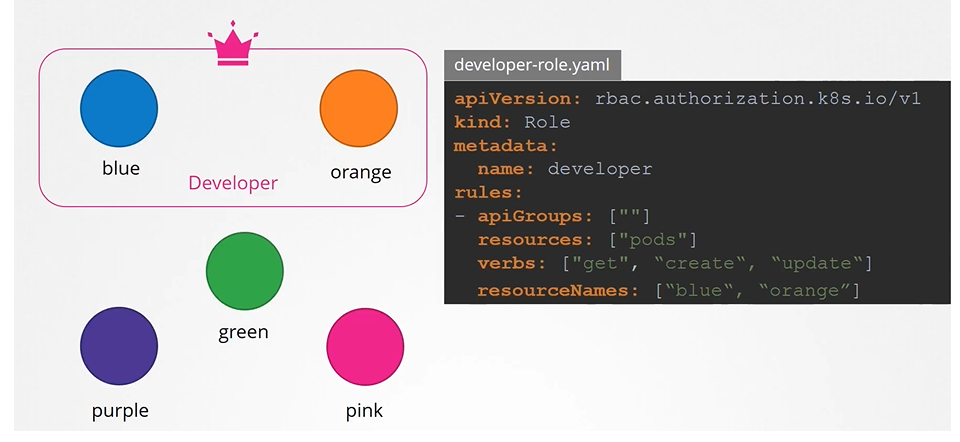
Resource names
Note on resource names we just saw how you can provide access to users for resources like pods within the namespace. we can restrict the user access to blue and orange pod as well. Which allows us to have more granular access.
apiVersion: rbac.authorization.k8s.io/v1kind: Rolemetadata: name: developerrules:- apiGroups: [""] # "" indicates the core API group resources: ["pods"] verbs: ["get", "update", "create"] resourceNames: ["blue", "orange"]
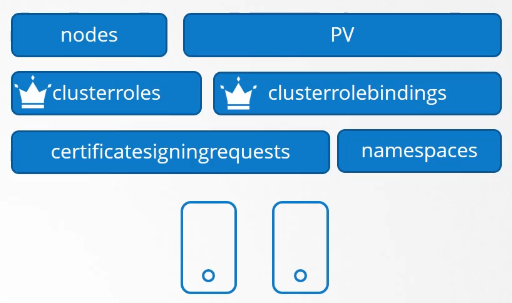
Cluster Roles
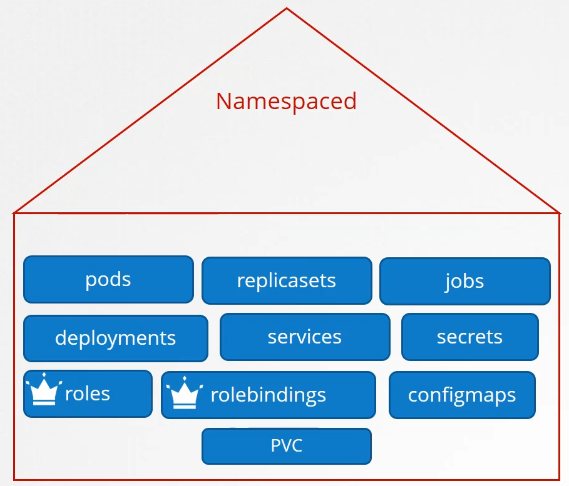
Roles and Role bindings are namespaced meaning they are created within namespaces.
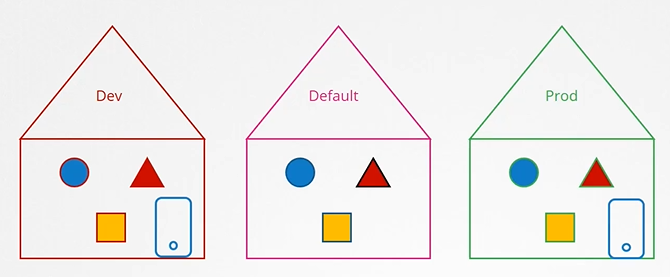
Namespaces
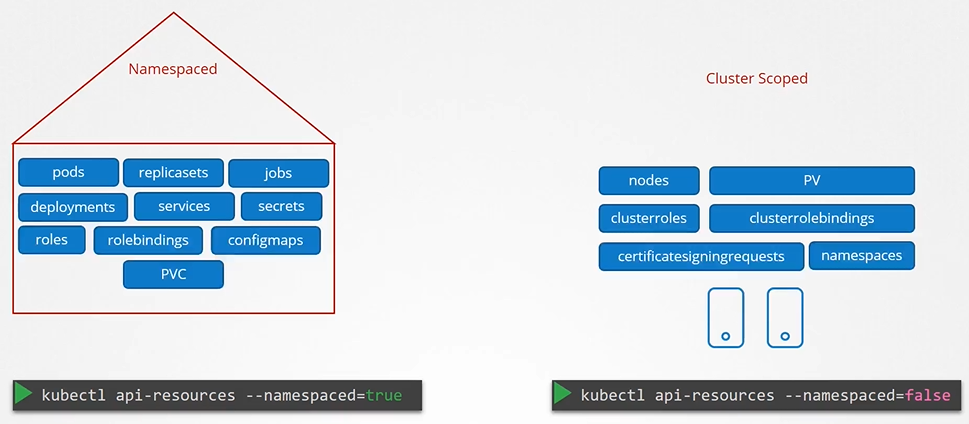
Can you group or isolate nodes within a namespace? No, those are cluster wide or cluster scoped resources. They cannot be associated to any particular namespace.
So the resources are categorized as either namespaced or cluster scoped.
To see namespaced resources
$ kubectl api-resources --namespaced=true
To see non-namespaced resources
$ kubectl api-resources --namespaced=false
If we don’t define the below objects namespace then they’ll be created in the default namespace.
We use roles and roles binding to authorize users to namespaced resources.
Cluster Roles and Cluster Role Bindings
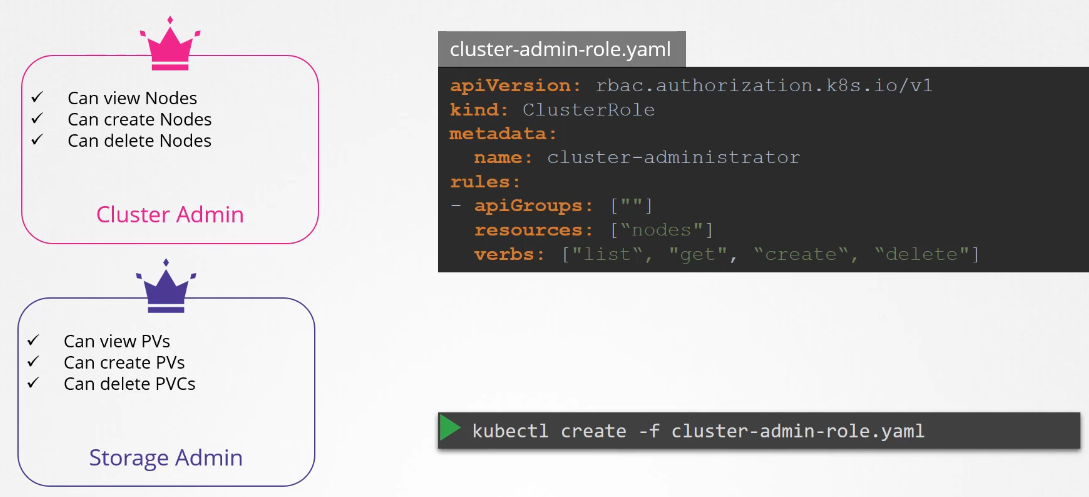
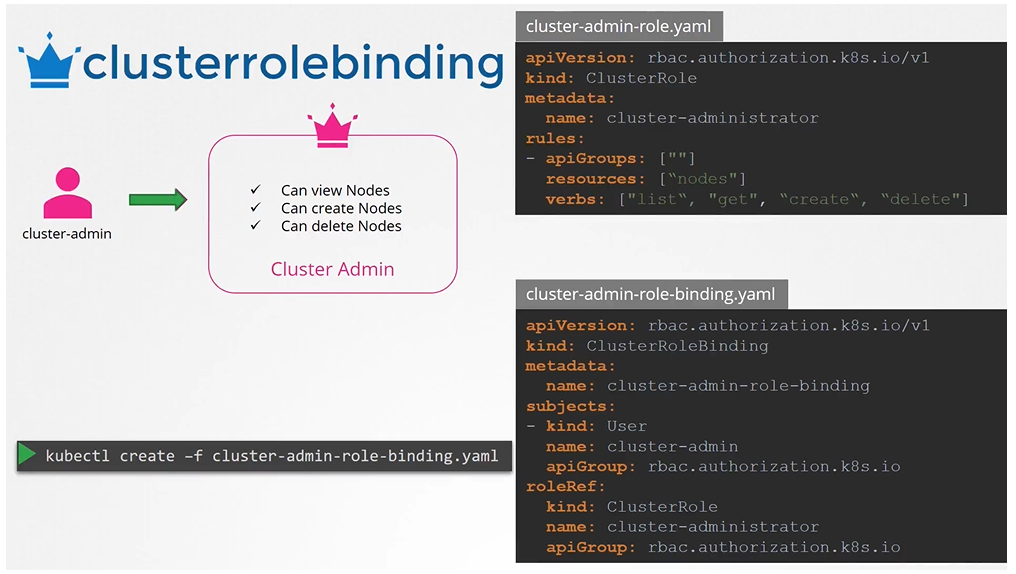
To authorize or restrict access to the cluster scoped resources, we use cluster roles and clusterRoleBindings
Cluster Roles are roles except they are for a cluster scoped resources. Kind as CLusterRole
Next step is to link the user to the role:
You can create a cluster role for namespace resources as well. When you do that user will have access to these resources across all namespaces.
  apiVersion: rbac.authorization.k8s.io/v1
  kind: ClusterRole
  metadata:
    name: cluster-administrator
  rules:
  - apiGroups: [""] # "" indicates the core API group
    resources: ["nodes"]
    verbs: ["get", "list", "delete", "create"]
Can we use cluster roles to access namespaced resources as well?
We said that cluster roles and bindings are used for cluster scoped resources, but that is not a hard rule. You can create a cluster role for name spaced resources as well. When you do that, the user will have access to these resources across all name spaces. Earlier, when we created a role to authorize a user to access pods, the user had access to the pods in a particular name space alone. With cluster roles, when you authorize a user to access the pods, the user gets access to all pods across the cluster.
Configuring Authorization modes
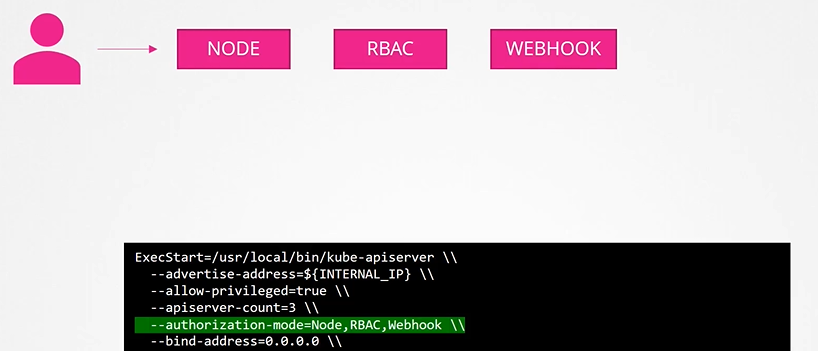
You can configure multiple authorization modes in Kubernetes using the --authorization-mode flag in the API server.
For example:
--authorization-mode=Node,RBAC,Webhook
When a request is made:
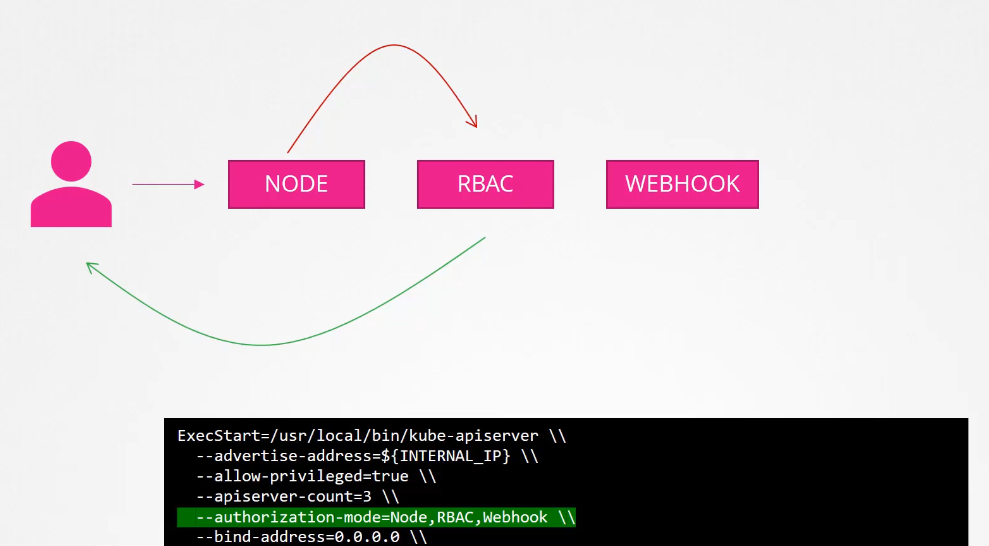
Node authorizer checks if it’s a kubelet request. If not, the request moves to the next module.
RBAC authorizer checks if the request matches a Role/ClusterRole. If denied, it moves to the next module.
Webhook authorization makes an external API call for validation.
When you specify multiple modes, it will authorize in the order in which it is specified
As soon as one module grants access, no further checks are performed.
Webhook
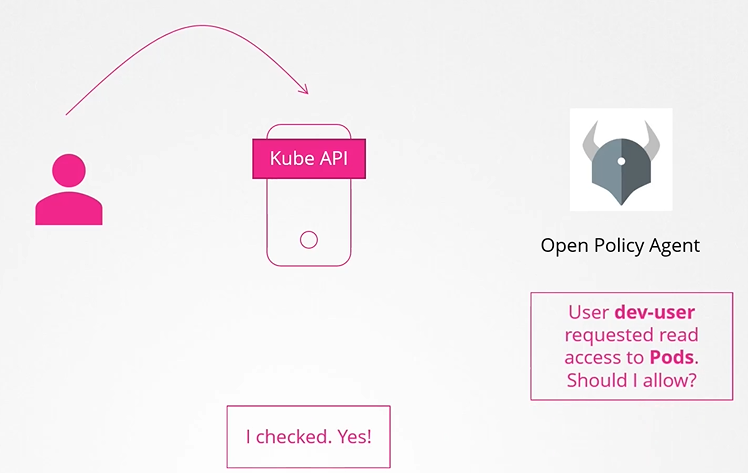
This will outsource the authorization to a 3rd party policy agent such as Open Policy Agent.
For instance, open policy agent is a third party tool that helps with admission control and authorization. You can have Kubernetes make an API call to the open policy agent with the information about the user and his access requirements and have the open policy agent decide if the user should be permitted or not. Based on that response, the user is granted access. Now, there are two more modes
An admission controller is a component that intercepts requests to the Kubernetes API server after authentication and authorization, but before the object is stored.
Limitations of RBAC
RBAC allows us to control who can perform what actions, such as:
✅ Allowing a user to create, list, or delete objects like Pods, Deployments, or Services.
✅ Restricting actions based on resource names (e.g., only allowing changes to Pods named blue or orange).
✅ Limiting access to a specific namespace.
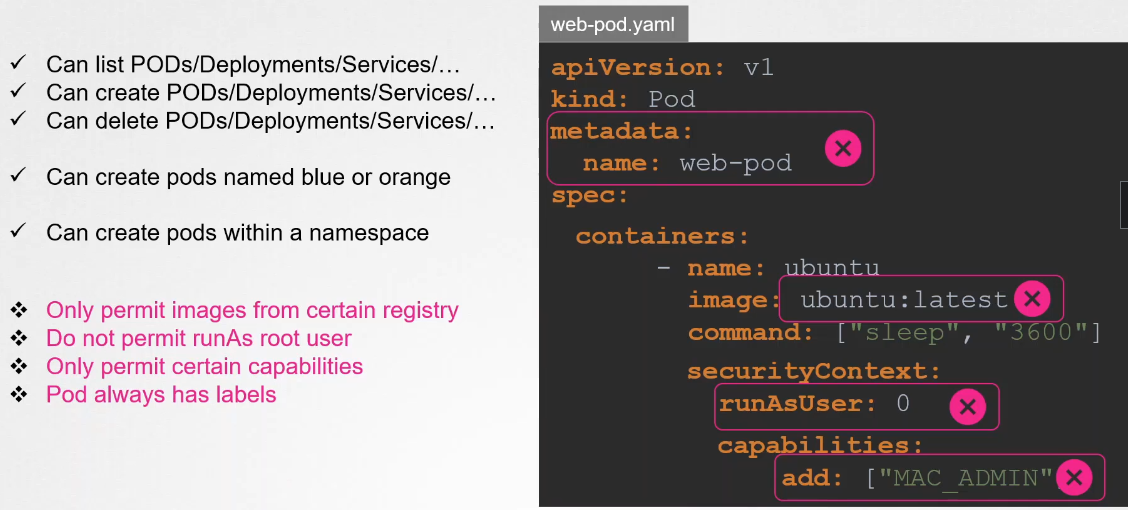
However, RBAC doesn’t enforce security policies beyond access control. For example, RBAC cannot:
🚫 Block images from public registries.
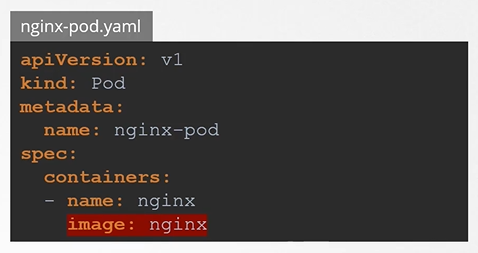
🚫 Ensure Pods never use the latest image tag.
🚫 Prevent containers from running as root.
🚫 Require specific metadata labels.
What Do Admission Controllers Do?
Admission controllers help enforce security policies and modify requests before they are processed. They can:
✅ Validate requests (e.g., reject Pods using public images).
✅ Modify requests (e.g., inject required labels automatically).
✅ Perform extra actions (e.g., assign a default storage class to Persistent Volume Claims).
Examples of Built-in Admission Controllers
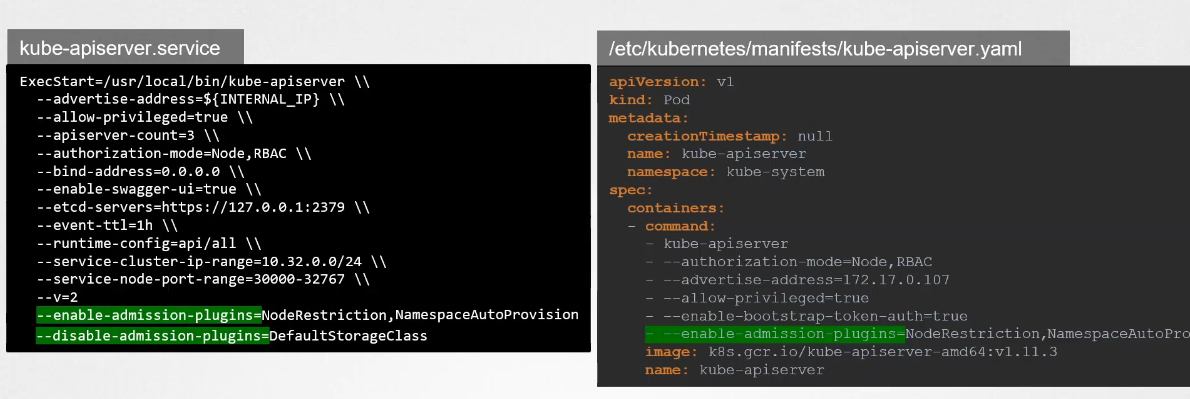
Kubernetes comes with several pre-built admission controllers, including:
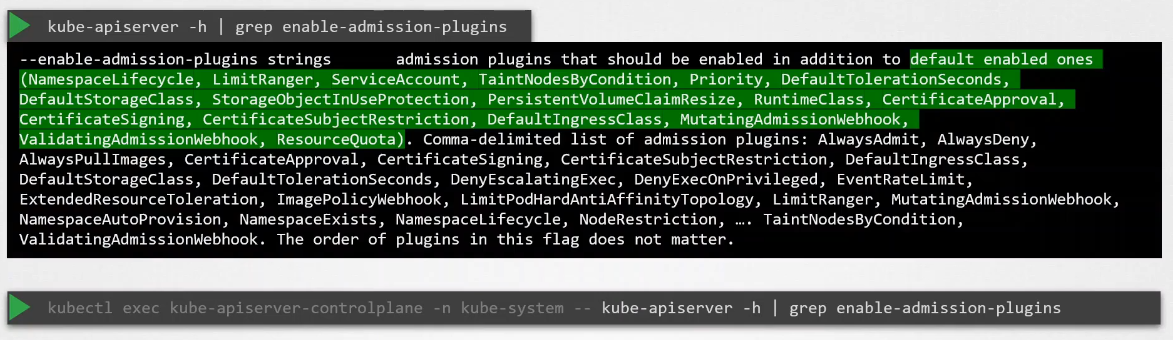
AlwaysPullImages → Ensures images are always pulled when creating a Pod.
DefaultStorageClass → Assigns a default storage class to Persistent Volume Claims (PVCs) if none is specified.
EventRateLimit → Limits the number of requests to the API server to prevent overload.
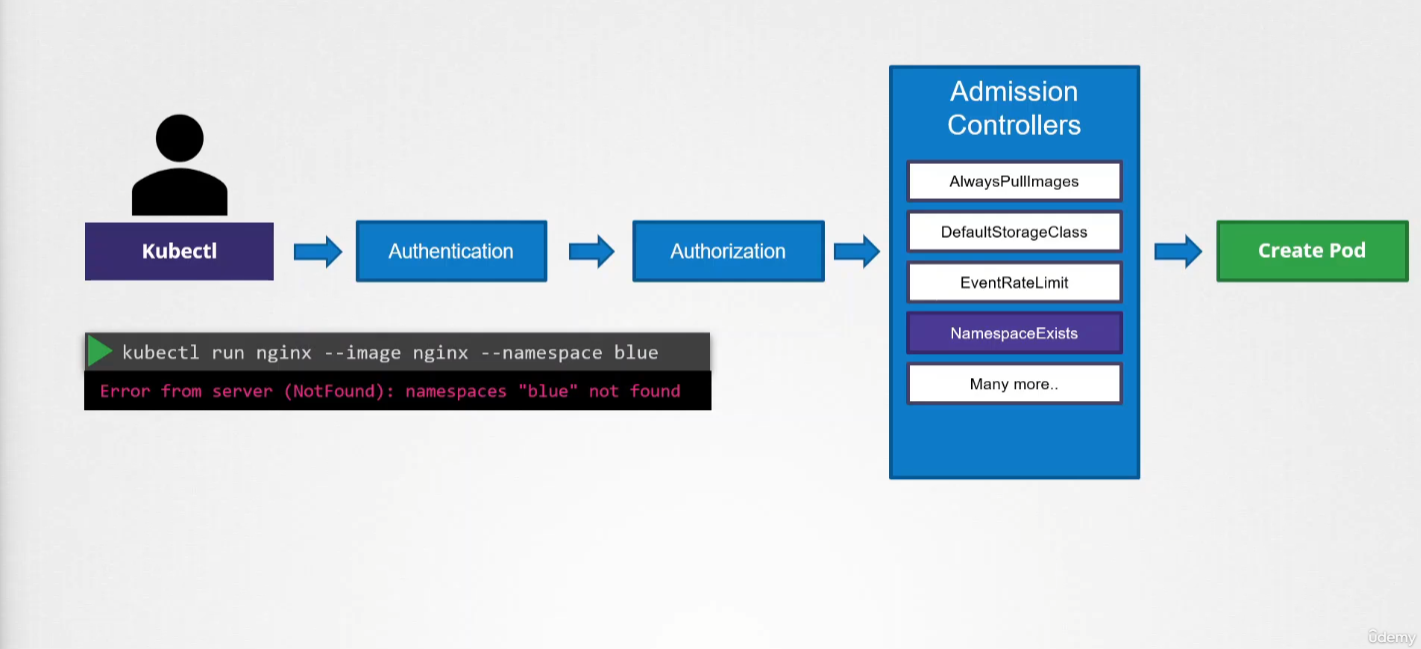
NamespaceExists → Rejects requests for namespaces that don’t exist.
In the example below, if the namespace does not exist, it will throw an exception:
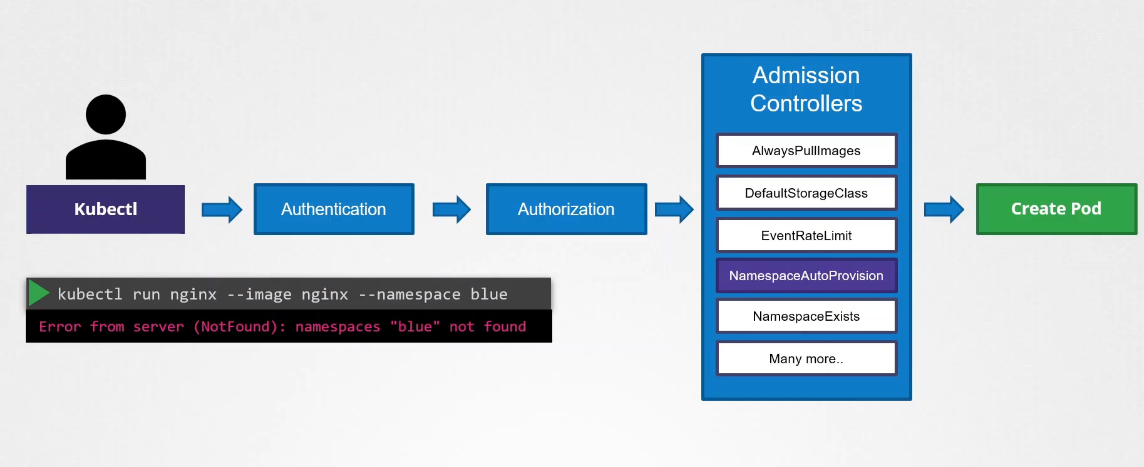
There’s a plugin that intercepts and creates the namespace if it does not exist:
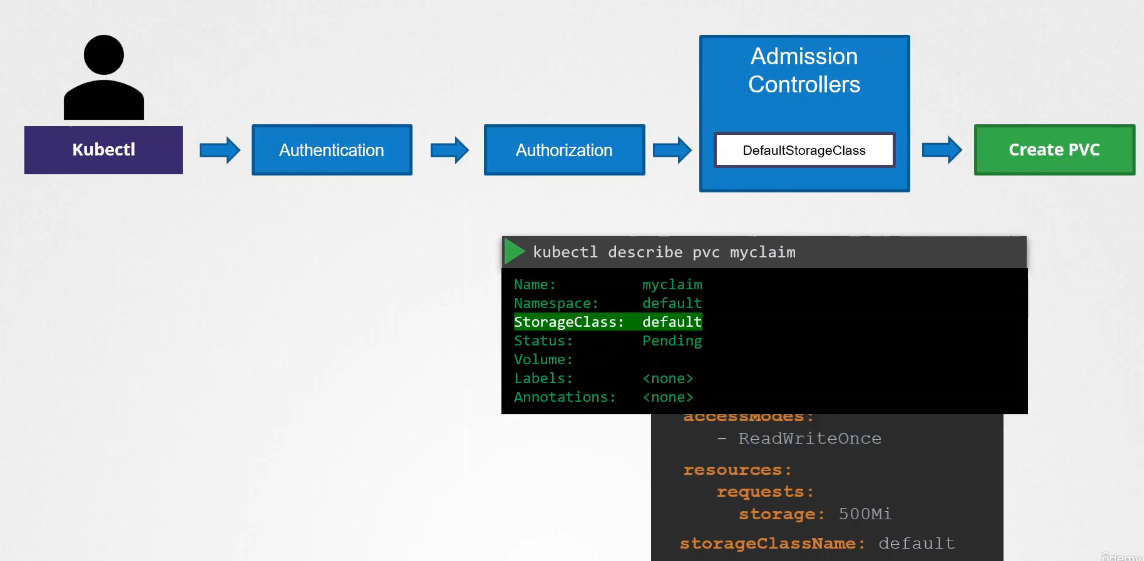
Another example of an admission controller is when you want to have a default storage created for a pod when a pod is created, but no storage was associated with it.
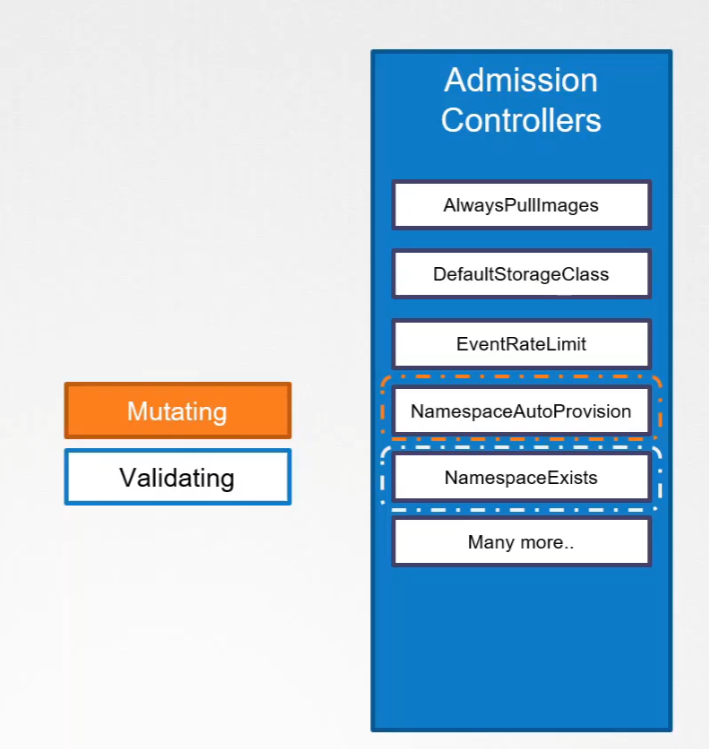
We looked at the namespace exists or namespace lifecycle admission controller. It can help validate if a namespace already exists and reject the request if it doesn’t exist. This is known as a validating admission controller.
Mutating Admission Controller
Let’s say you’re submitting a request to create a PVC. The request goes through authentication, authorization, and finally, the admission controller.
The default StorageClass admission controller will watch for requests to create a PVC and check if it has a StorageClass mentioned in it. If not, which is true in our case, it will modify your request to add the default StorageClass to your request.
This could be whatever StorageClass is configured as the default StorageClass in your cluster. So when the PVC is created and you inspect it, you’ll see that a default StorageClass is added to it even though you hadn’t specified it during the creation.
This type of admission controller is known as a mutating admission controller. It can change or mutate the object itself before it is created.
Both Validating and Mutating Admission Controllers
Mutating admission controllers will run first. This is because they want to catch any invalidation during validation.
There may be admission controllers that can do both—mutate a request as well as validate a request. Generally, mutating admission controllers are invoked first, followed by validating admission controllers. This is so that any change made by the mutating admission controller can be considered during the validation process.
For example, the namespace auto-provisioning admission controller, which is a mutating admission controller, is run first, followed by the validating controller namespace exists. If it were run the other way, then the namespace exists admission controller would always reject the request for a namespace that does not exist, and the namespace auto-provisioning controller would never be invoked to create the missing namespace.
When a request goes through these admission controllers, if any admission controller rejects the request, the request is rejected and an error message is shown to the user.
Webhook
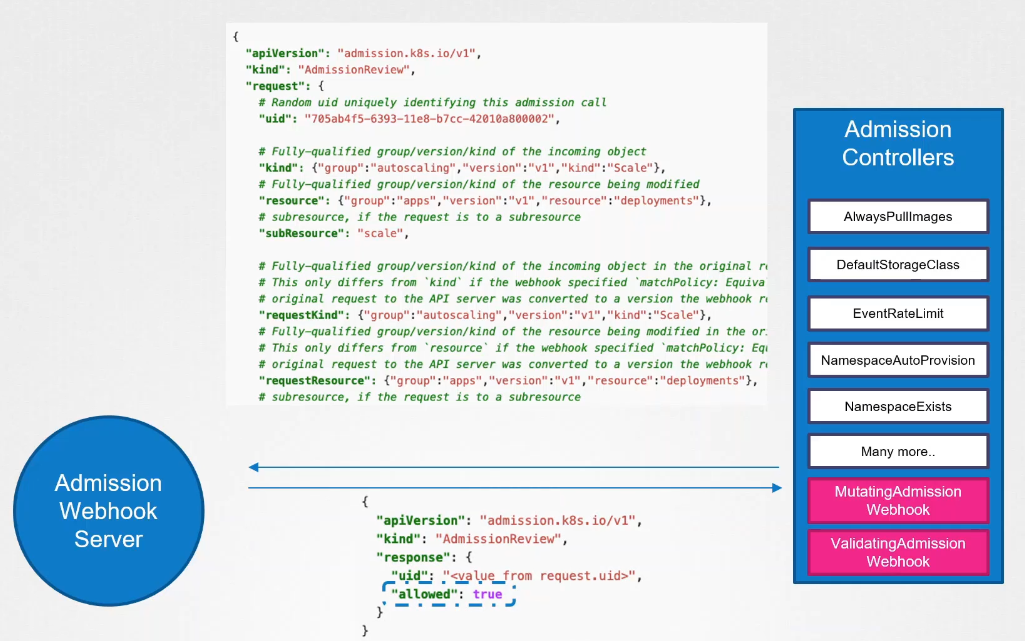
Now, what if we want our own admission controller with our own mutations and validations that have our own logic? To support external admission controllers, there are two special admission controllers available: mutating admission webhook and validating admission webhook.
where will be these custom webhooks?
We can configure these webhooks to point to a server that’s hosted either within the Kubernetes cluster or outside it, and our server will have our own admission webhook service running with our own code and logic.
After our request goes through all the built-in admission controllers, it hits the webhook that’s configured. We will see how to configure that in a bit. Once it hits the webhook, it makes a call to the admission webhook server, passing an admission review object in a JSON format. This object has all the details about the request, such as the user that made the request, the type of operation the user is trying to perform, and the details about the object itself.
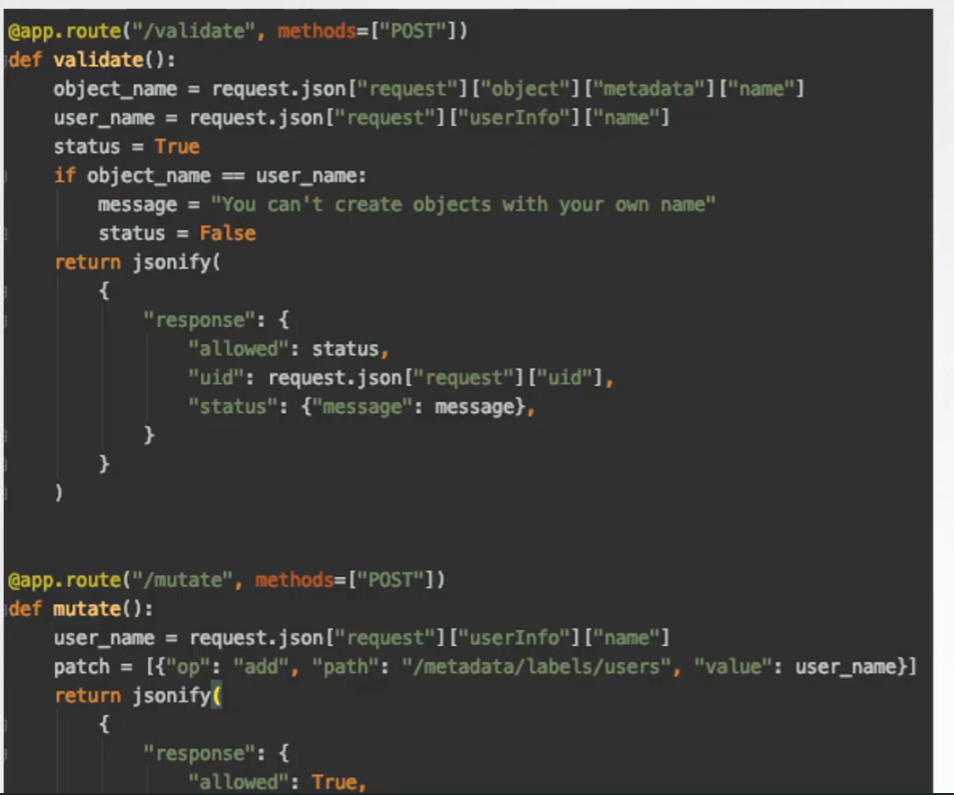
On receiving the request, the admission webhook server responds with an admission review object with the result of whether the request is allowed or not. If the allowed field in the response is set to true, then the request is allowed. If it is set to false, it is rejected.
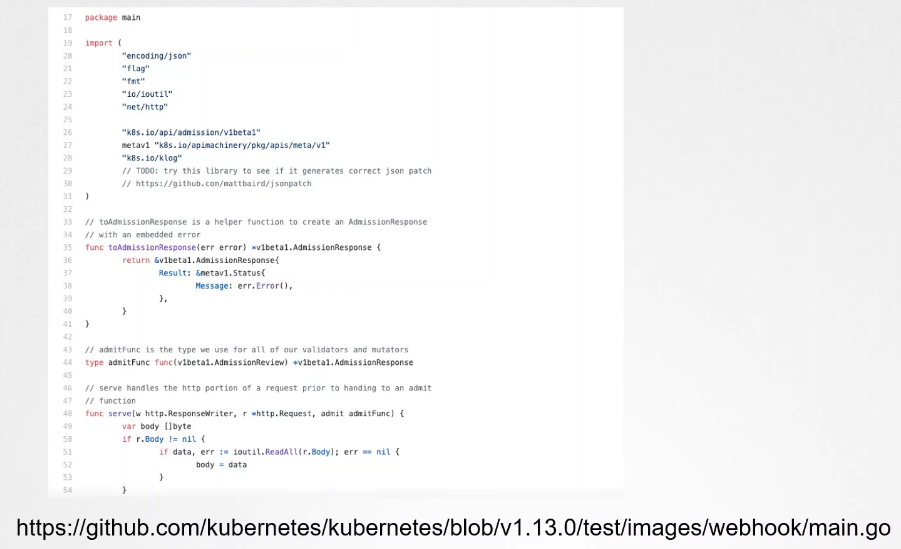
Sample Webhook Server in Go
Sample Webhook Server in Python
The main takeaway is that the admission webhook server is a server that you deploy that contains the logic or the code to permit or reject a request, and it must be able to receive and respond with the appropriate responses that the webhook expects.
Configuring the Webhook
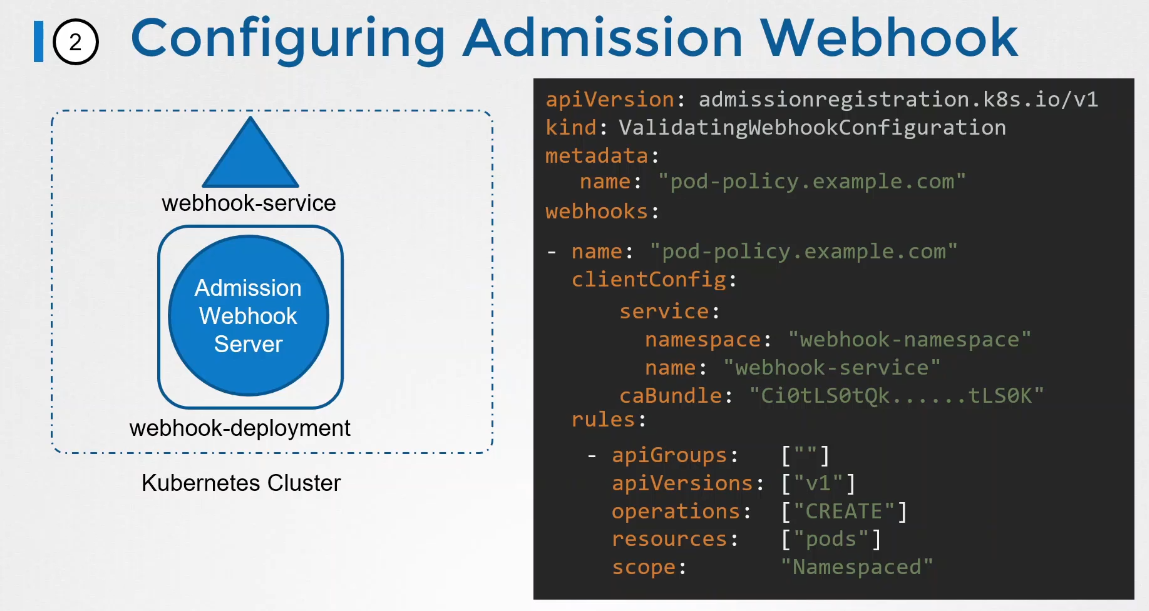
So we either run it as a server somewhere or containerize it and deploy it within the Kubernetes cluster itself as a deployment.
If deployed as a deployment in a Kubernetes cluster, it needs a service for it to be accessed. So we have a service named webhook service as well. The next step is to configure our cluster to reach out to the service and validate or mutate the requests. For this, we create a validating webhook configuration object. We start with the API version, kind, metadata, and webhooks section.
The API version is admissionregistration.k8s.io/v1, and the kind is ValidatingWebhookConfiguration. If we are configuring a mutating webhook, this would be a MutatingWebhookConfiguration.
In this example, we are only going to call this webhook configuration when calls are made to create pods. Once this object is created, every time we create a pod, a call will be made to the webhook service, and depending on the response, it will be allowed or rejected.

 In this example: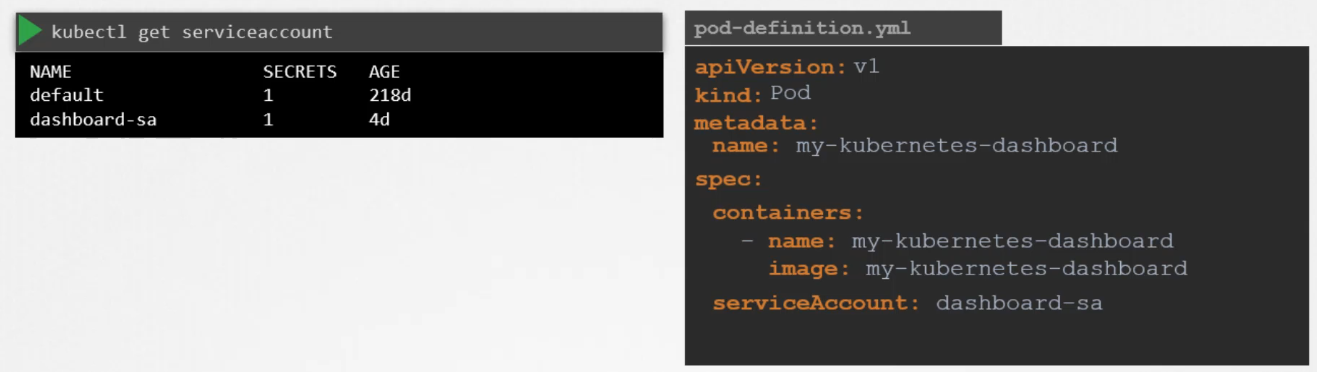
 As soon as one module grants access, no further checks are performed.

 There’s a plugin that intercepts and creates the namespace if it does not exist:
 Another example of an admission controller is when you want to have a default storage created for a pod when a pod is created, but no storage was associated with it.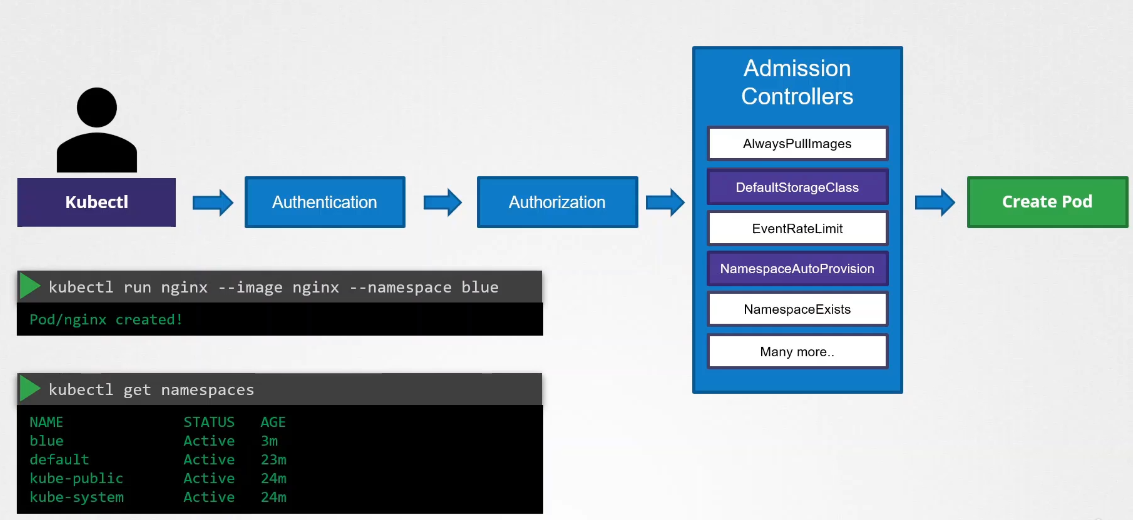

 The main takeaway is that the admission webhook server is a server that you deploy that contains the logic or the code to permit or reject a request, and it must be able to receive and respond with the appropriate responses that the webhook expects.