 Helm is used to streamline installing and managing Kubernetes applications. Helm consists of the helm tool, which needs to be installed, and a chart. A chart is a Helm package, which contains the following:
- A description of the package
- One or more templates containing Kubernetes manifest files
- Charts can be stored locally, or accessed from remote Helm repositories
How to install WordPress
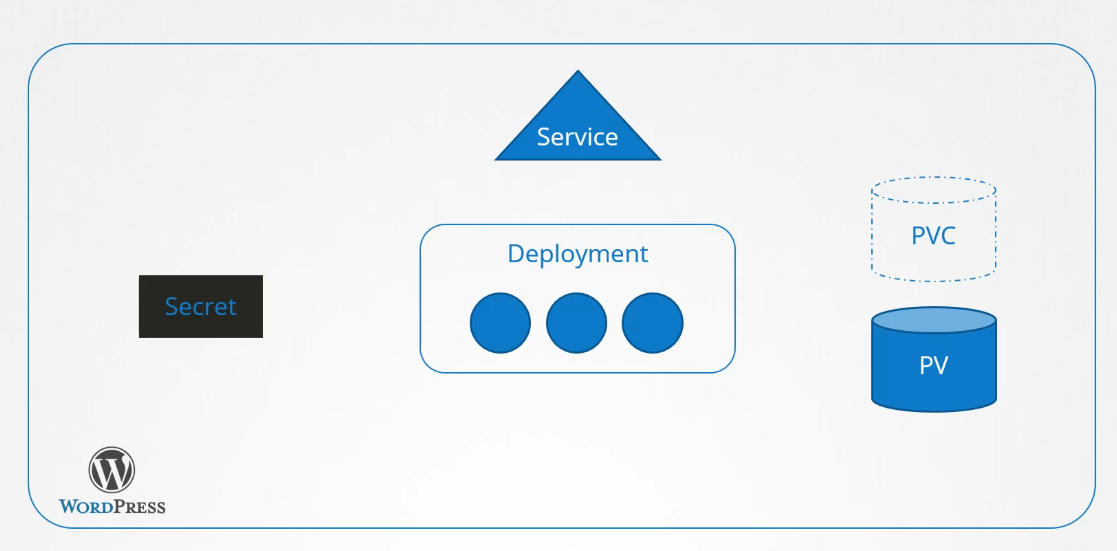
If we want to install WordPress without helm we need to have many file: services, deployments, databases, and etc.
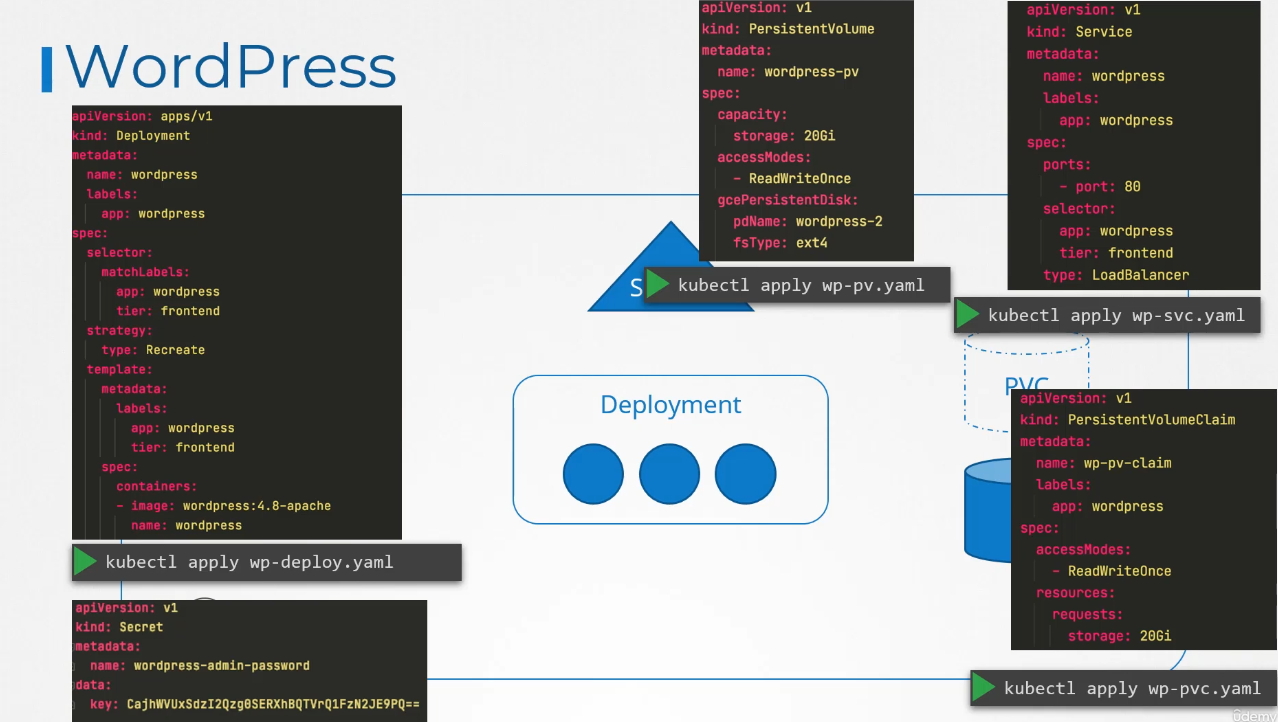
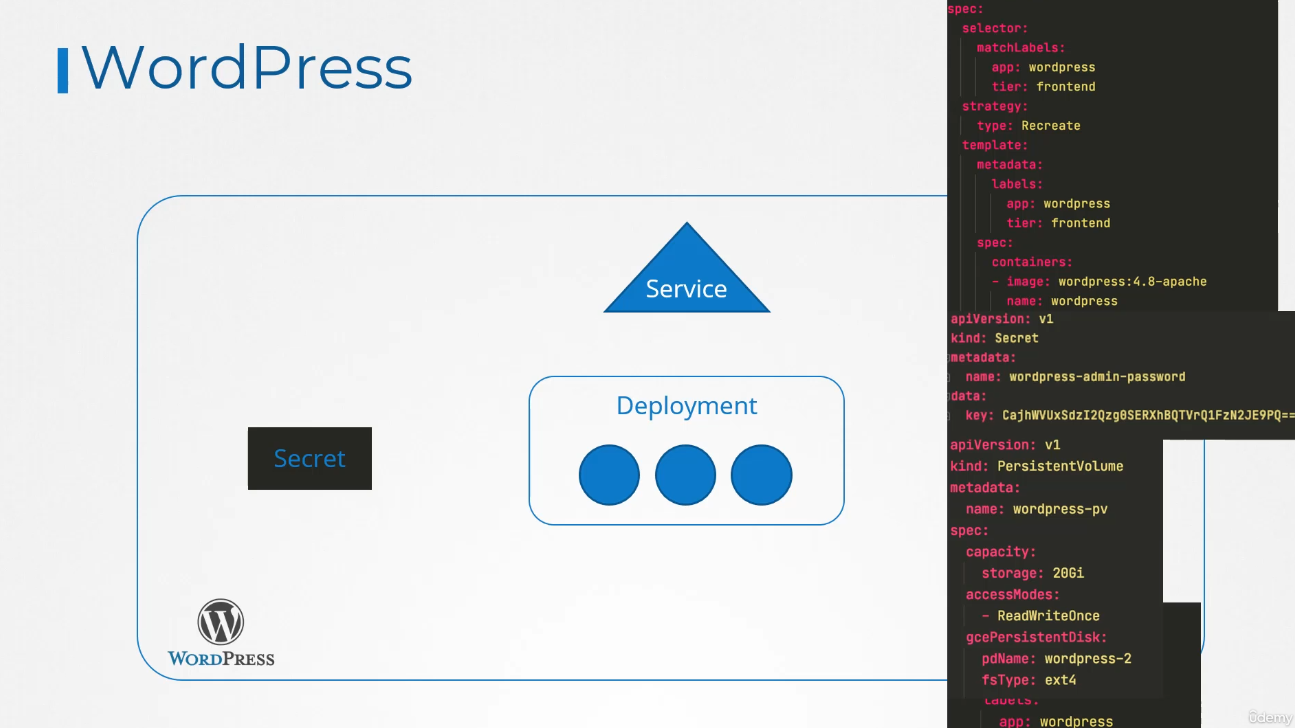
Managing and maintaining these files when you want to upgrade is really hard. We can put them all in one file as well but that will only make things harder.
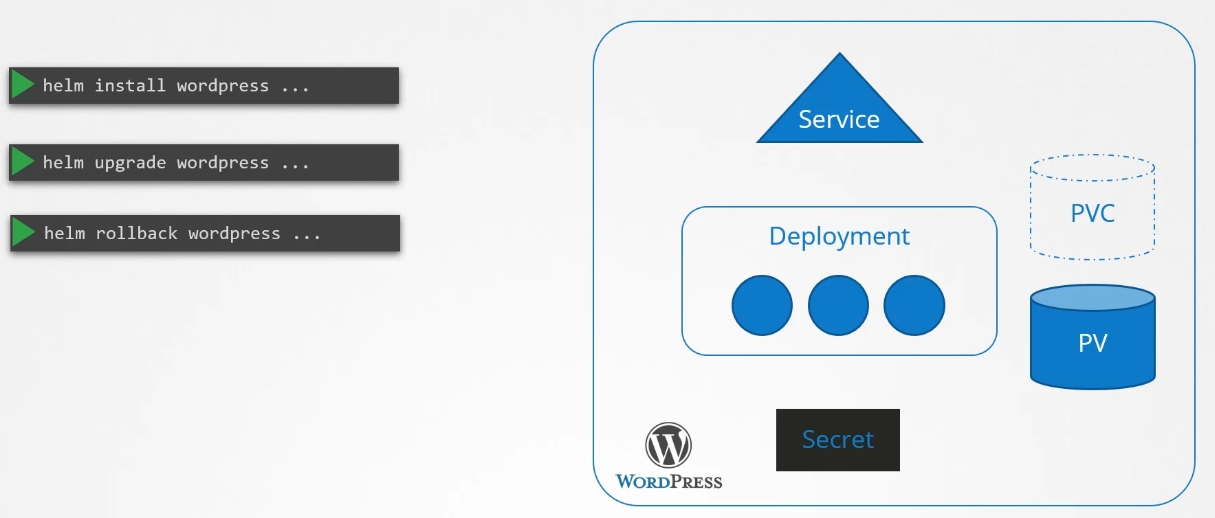
That’s where helm comes into the play, where we can install, update, rollback and delete the whole stack with one command.
Helm vs Helm Charts Helm vs Helm chart
- Helm: The tool (package manager) used to install, manage, and upgrade applications on Kubernetes.
- Helm Chart: A package of pre-configured Kubernetes resources managed by Helm.
Customizing the helm charts
We can customize the attributes of the applications with the values.yaml file.
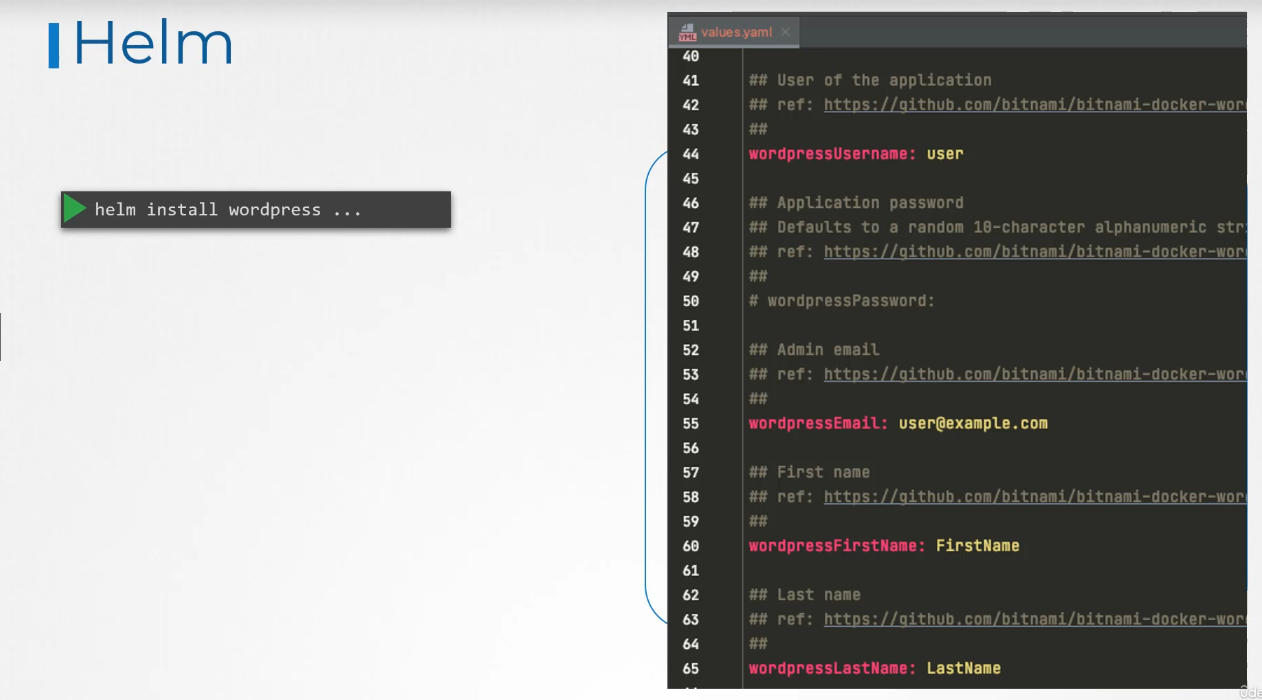
Installing the Helm Binary
Installation based on each operating system
Helm Charts
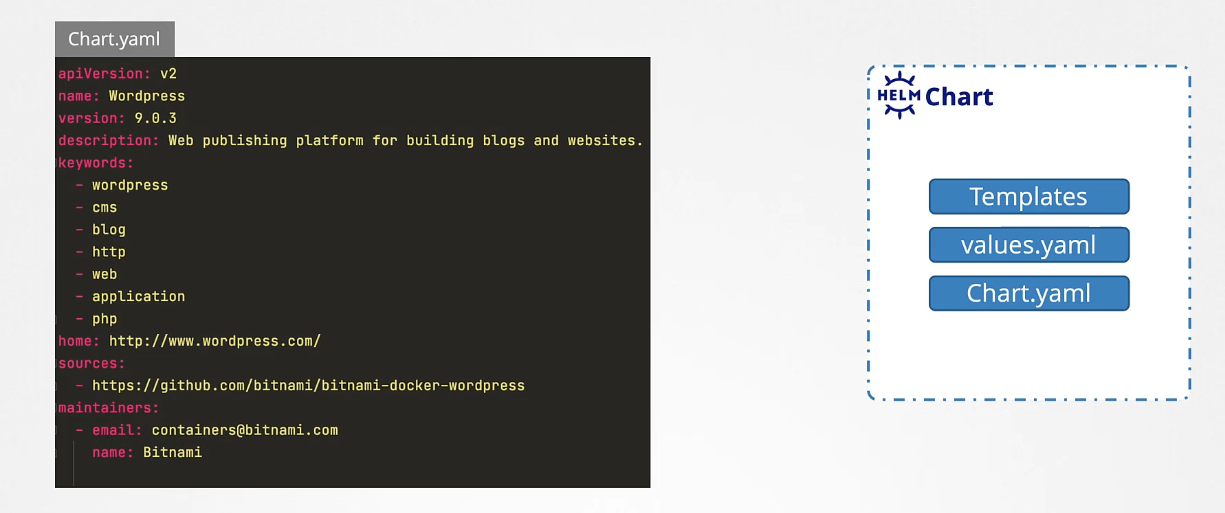
A Helm chart consists of:
- Template files (
.yamlfiles with placeholders) values.yaml(stores customizable settings)Chart.yaml(contains metadata about the chart, like name, version, description, and keywords)
A single Helm chart can be used to deploy a full application like WordPress, including all necessary Kubernetes objects. You can create your own charts or explore pre-built charts on Artifact Hub, which hosts over 5,700 charts.
Managing Helm Repositories
A Helm repository is a location where Helm charts are stored and shared. It acts as a package registry for Helm, similar to how Docker Hub stores container images or how npm and Maven store packages.
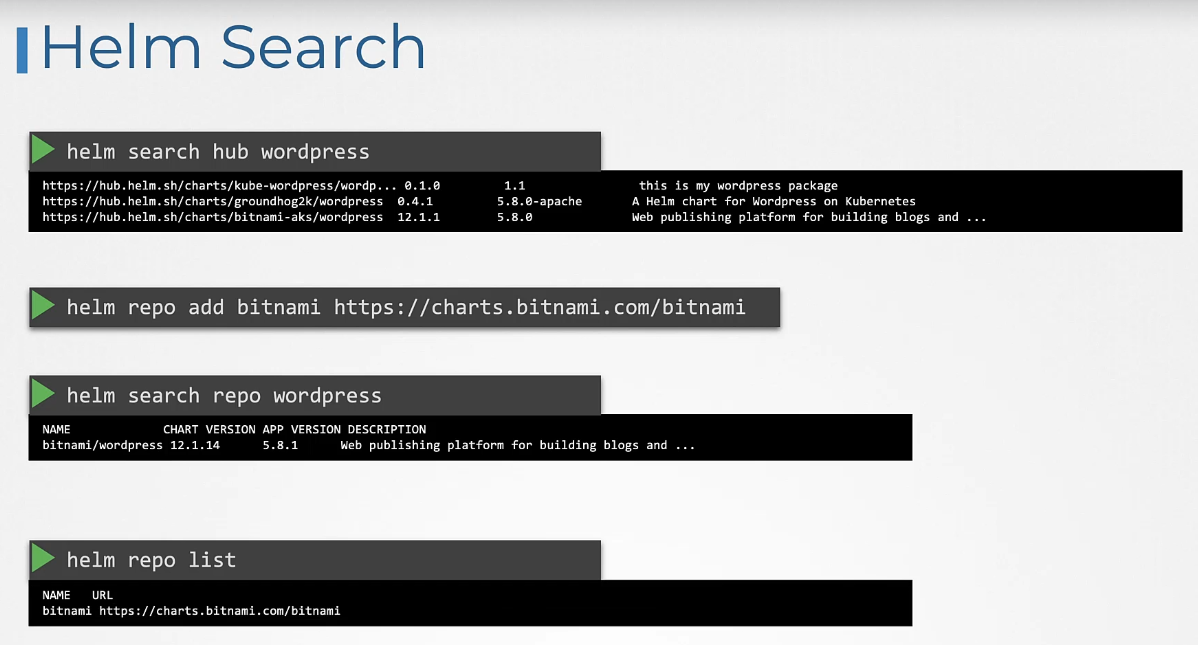
$ helm repo add <repo-name> <repo-url>
$ helm repo add bitnami https://charts.bitnami.com/bitnami
$ helm repo list
$ helm repo update

$ helm search repo <chart-name>
$ helm search repo bitnami
$ helm search hub <app-name>

$ helm install <release-name> <repo-name>/<chart-name>
$ helm install my-wordpress bitnami/wordpress
Searching & Installing Helm Charts
You can search for existing Helm charts using:
- Web search: Browse Artifact Hub.
- CLI search: Run
helm search hub <app-name>.
Helm also supports other repositories, such as Bitnami, which requires adding the repo first:
helm repo add bitnami https://charts.bitnami.com/bitnami
helm search repo <app-name>
helm repo list  # View all added repositories
Installing a Helm Chart
To install a chart on your Kubernetes cluster:
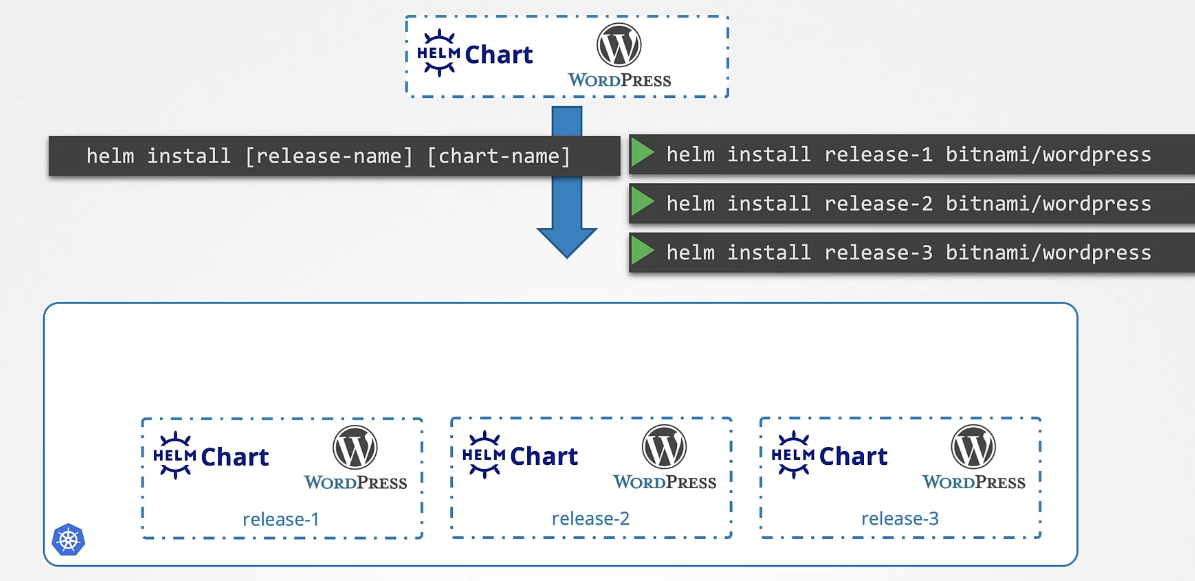
helm install <release-name> <chart-name>- The release name uniquely identifies each deployment.
- Helm downloads, extracts, and installs the chart on your cluster.
- You can install the same chart multiple times with different release names, each as a separate instance.
Managing Helm Releases
-
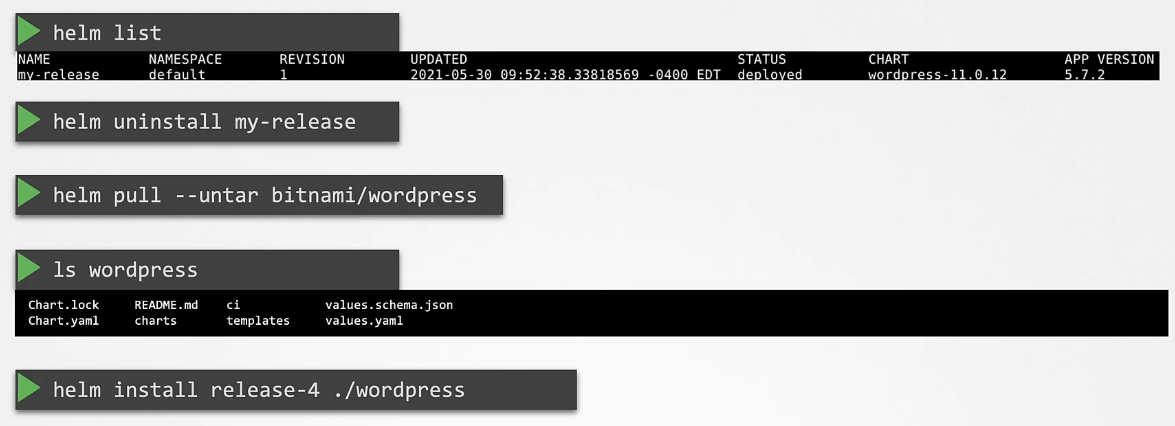
List installed charts:
helm list -
Uninstall a release:
helm uninstall <release-name> -
Download a chart without installing:
helm pull <chart-name> --untar -
Modify and install a local chart:
helm install my-release ./my-chart
Customizing Before Installing and charts
A helm chart is the values + template
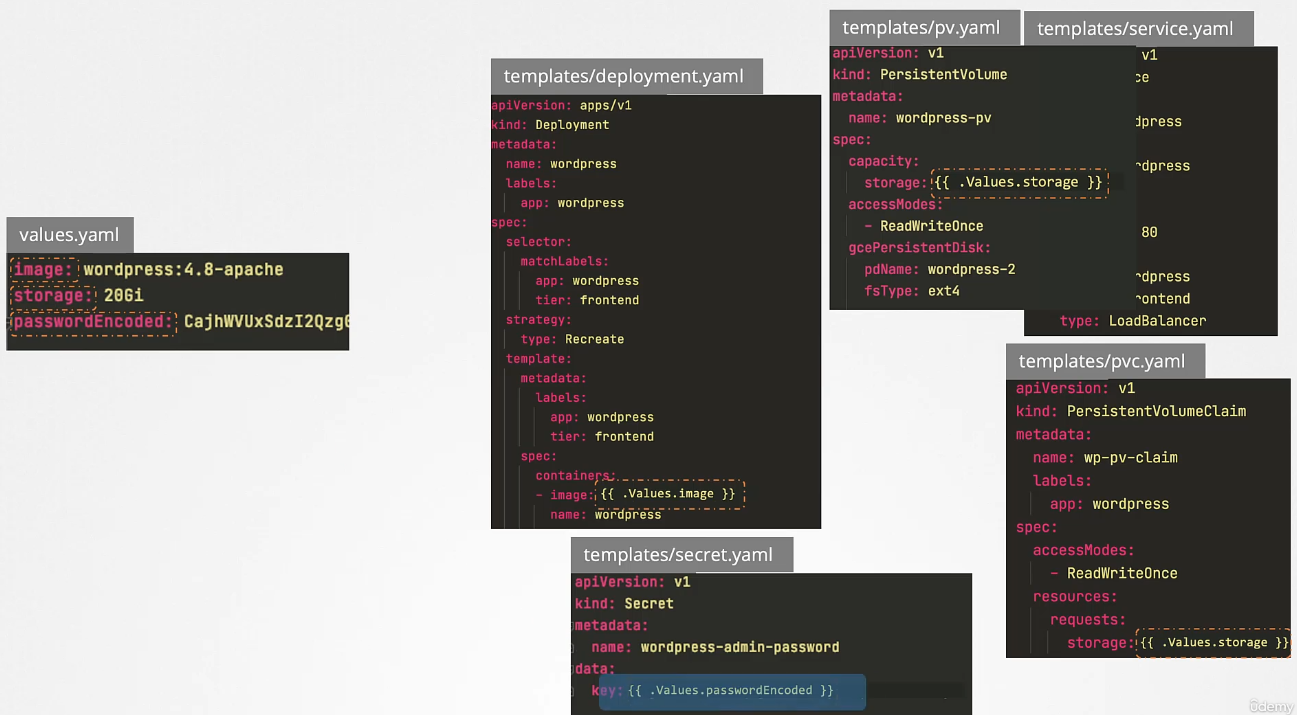
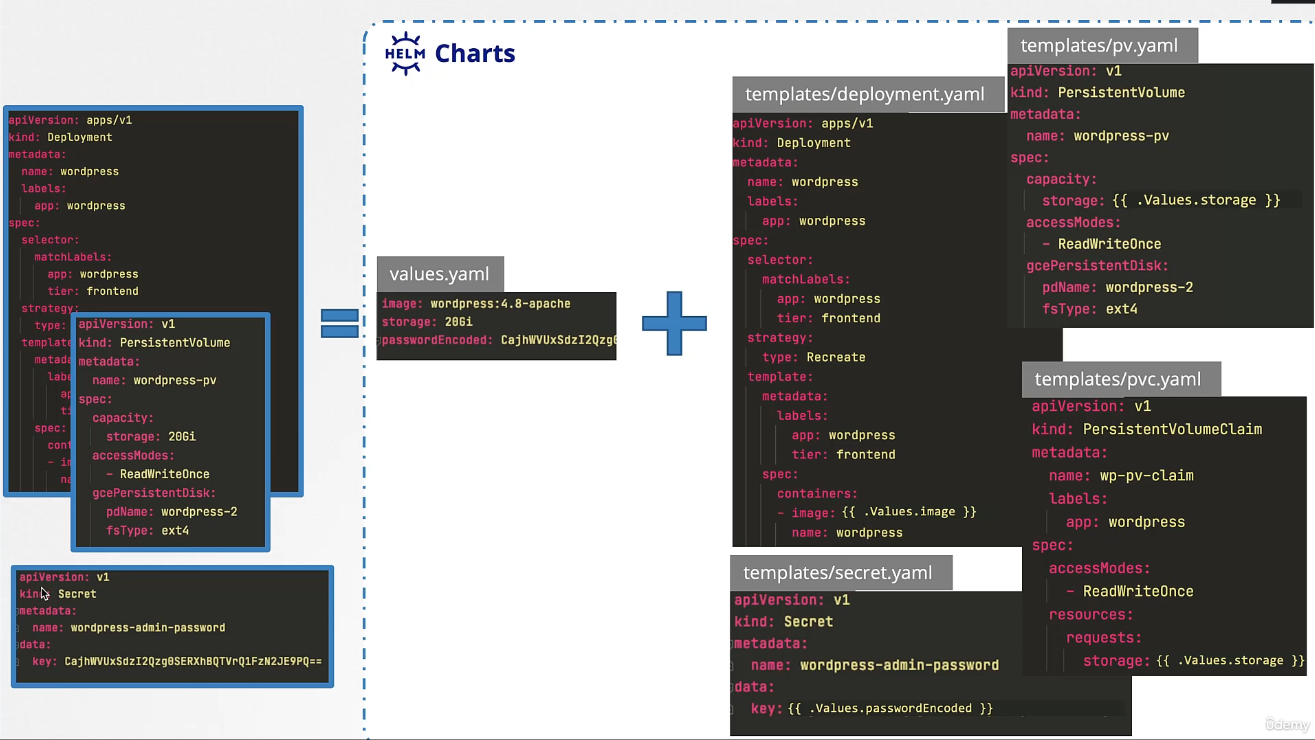 A Helm chart consists of templates to which specific values are applied
- The values are stored in the values.yaml file, within the helm chart
- The easiest way to modify these values, is by first using helm pull to fetch a local copy of the helm chart
- Next use your favorite editor on chartname/values.yaml to change any values
Release
Each installation of chart is named a release and each release has a name:
Eeach release is independent of each other.
Identify the name of the Operating system installed.
cat /etc/_release_